Before you start
- Lightroom Classic 6 or newer, on Mac or Windows. The cloud version of Lightroom does not run plug-ins.
- The 35mm plan or higher, or Drive. The download is under Settings, Lightroom.
- STEP 1 OF 6
Download the plug-in
Sign in to HeyShutter and open Settings, Lightroom. Click Download the plugin. You get a zip file.
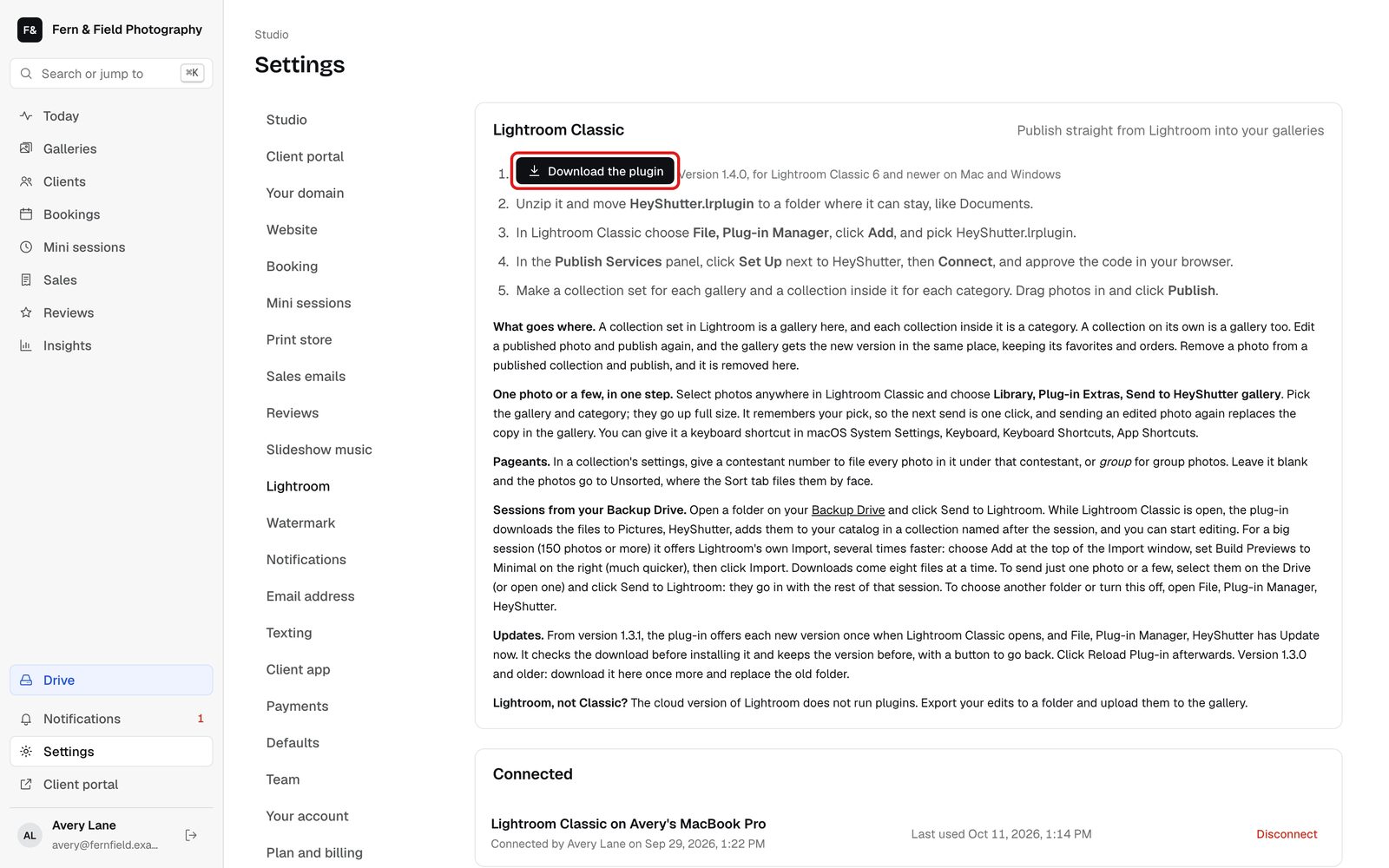
Settings, Lightroom. - STEP 2 OF 6
Unzip it somewhere it can stay
Unzip the file and move HeyShutter.lrplugin to a folder you will not clean out, like Documents. Lightroom loads it from there every time it opens.
- STEP 3 OF 6
Add it in the Plug-in Manager
In Lightroom Classic choose File, Plug-in Manager. Click Add at the bottom left, pick HeyShutter.lrplugin and click Add Plug-in. HeyShutter shows as Installed and running, with its version. Click Done.
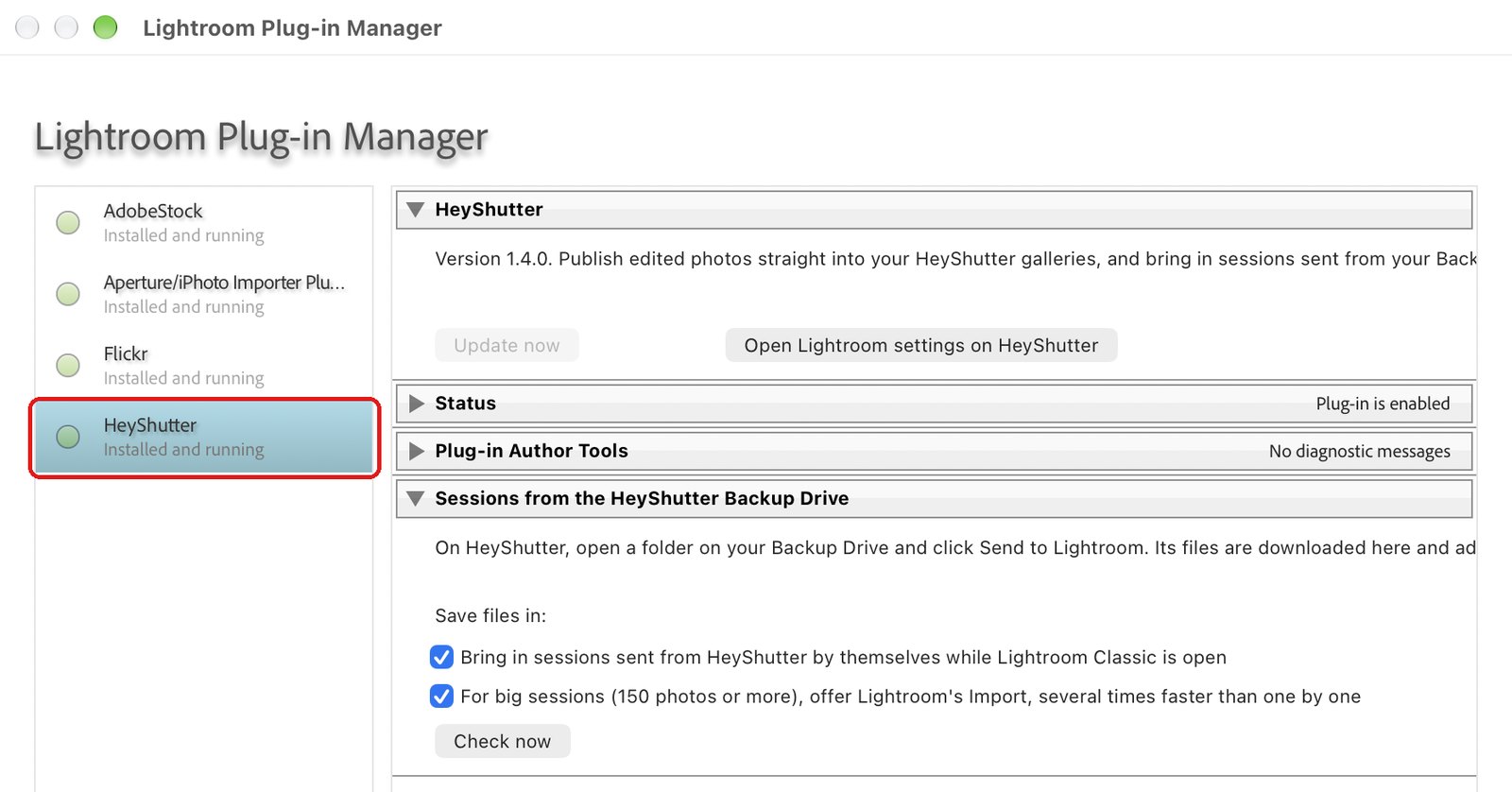
File, Plug-in Manager. - STEP 4 OF 6
Find it in Publish Services
In the Library module, HeyShutter is now listed under Publish Services. Click Set Up next to it to connect it to your studio.
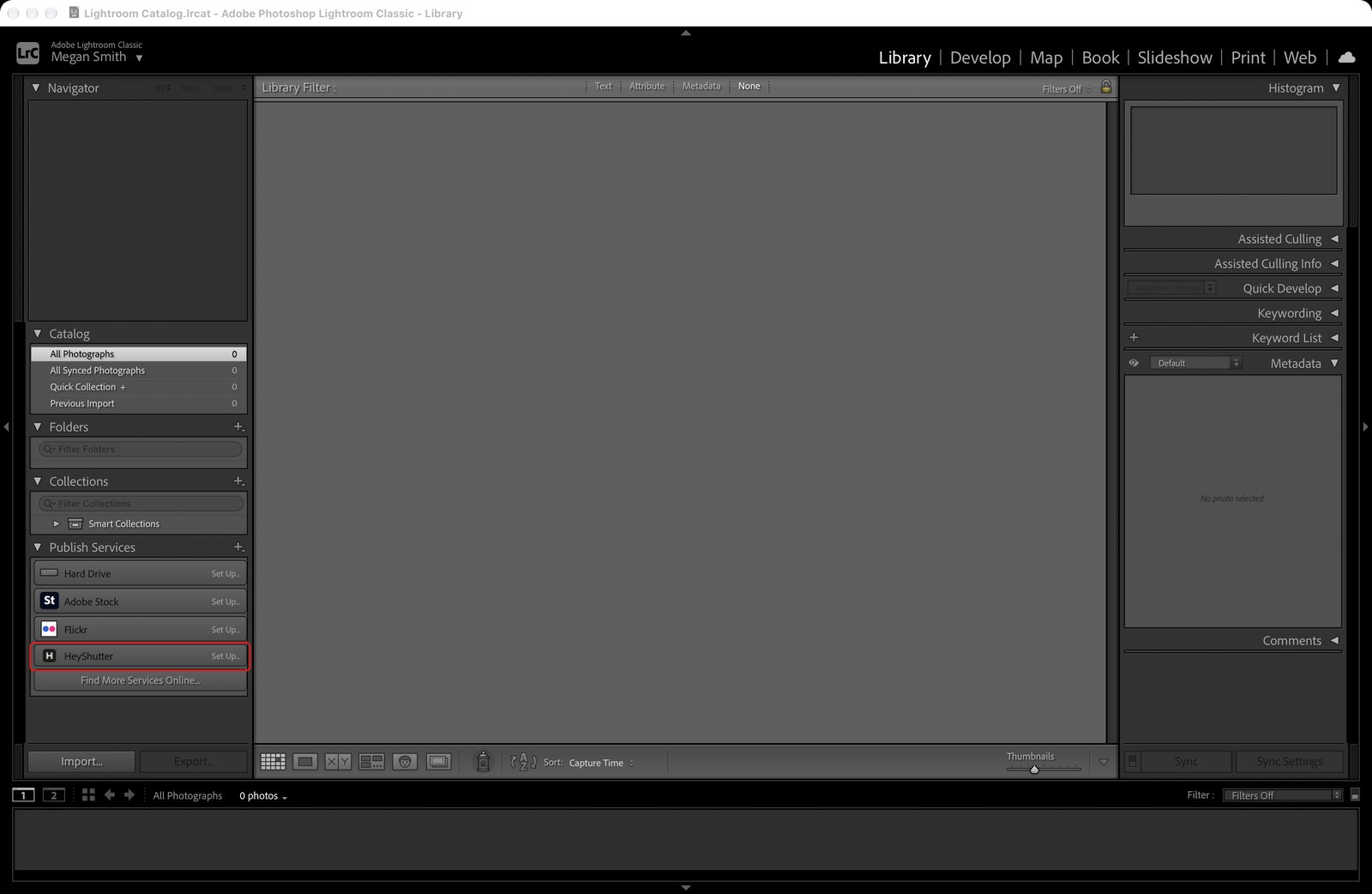
Library module, Publish Services. - STEP 5 OF 6
Update when Lightroom offers
When there is a new version, Lightroom offers it once when it opens. Click Update now. It downloads the new version, checks it and installs it. Then open File, Plug-in Manager, select HeyShutter and click Reload Plug-in, or restart Lightroom.
Tip. Bringing a session in from Drive right now? Click Not now, and update from File, Plug-in Manager, HeyShutter when it is done.
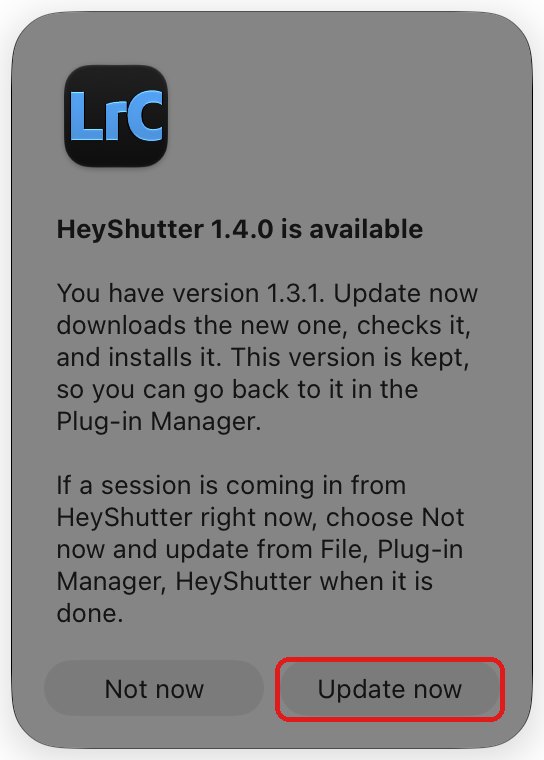
The update offer in Lightroom. - STEP 6 OF 6
See which computers are connected
Settings, Lightroom lists every copy of Lightroom connected to your studio, when it was last used, and a Disconnect button.
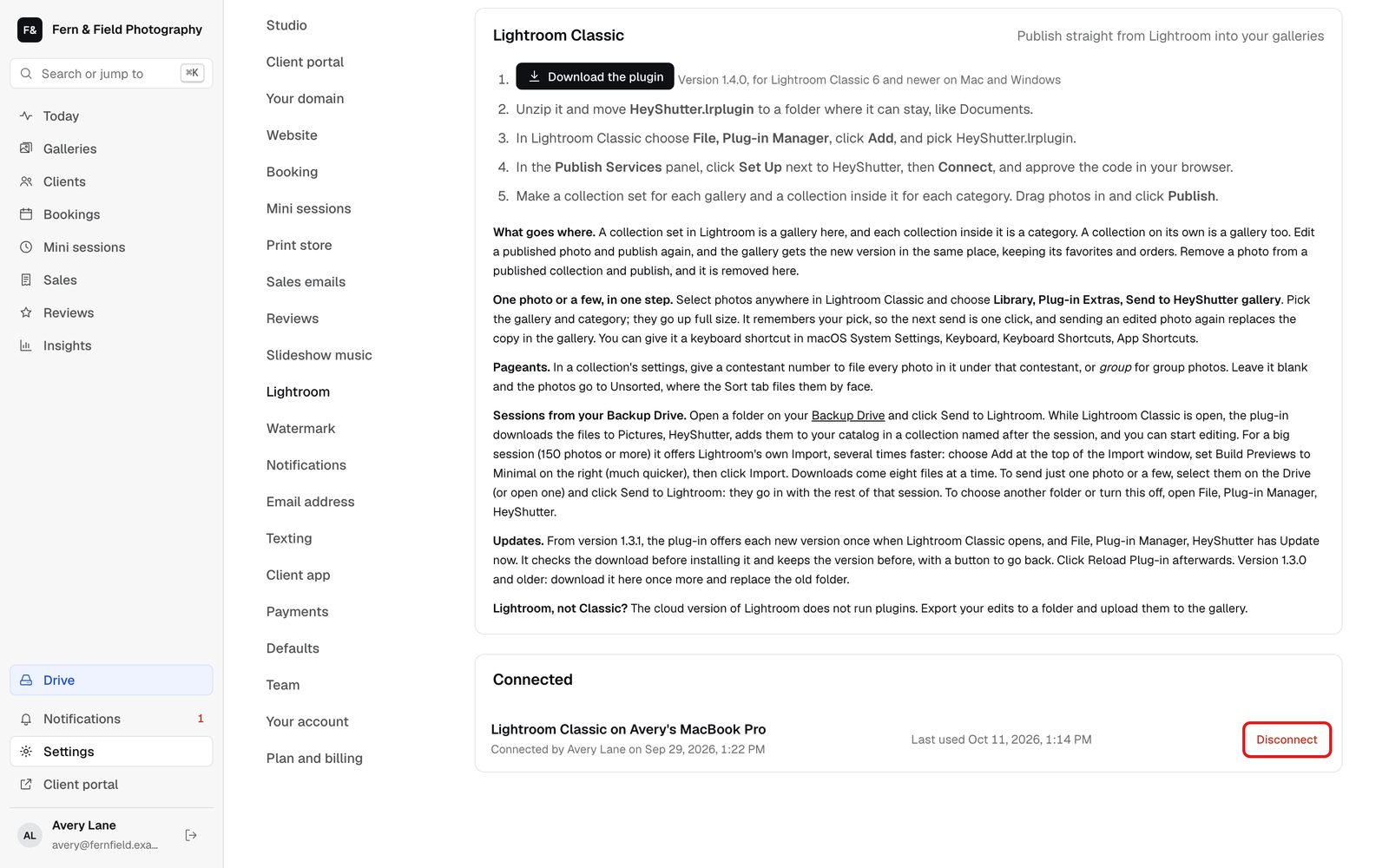
Connected copies of Lightroom.
Good to know
Questions
Is the plug-in free?
Yes. It comes with HeyShutter: publishing on 35mm and up, and sending from Drive on any plan with Drive.
Does it work on Windows?
Yes. The same plug-in works with Lightroom Classic on Mac and Windows.
Update now says to connect first.
Connect Lightroom to your studio, then update. See Connect Lightroom Classic to HeyShutter.
Stuck? Email [email protected] with a screenshot, or open Support from inside HeyShutter.