Before you start
- The HeyShutter plug-in installed in Lightroom Classic. Choose File, Plug-in Manager; HeyShutter should say Installed and running. If it is not listed, sign in to HeyShutter and get it under Settings, Lightroom.
- A browser signed in to HeyShutter as a member of your studio. Lightroom opens it for you in step 3.
- STEP 1 OF 5
Open Publish Services and click Set Up
In Lightroom Classic click Library at the top right. In the left panel, scroll down to Publish Services. HeyShutter is listed there. Click Set Up… at the right end of its row.
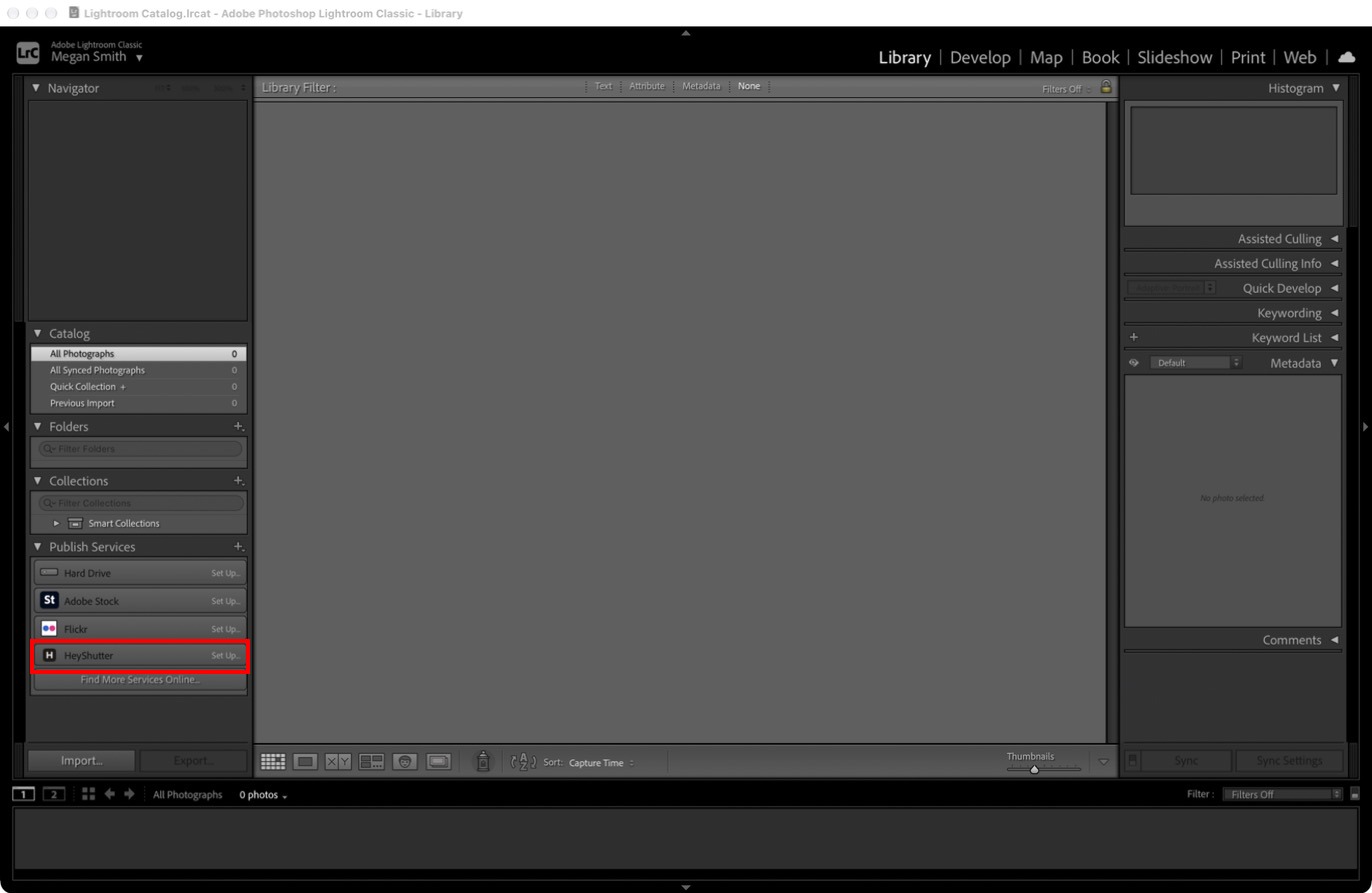
Library module, left panel. Set Up… on the HeyShutter row. - STEP 2 OF 5
Click Connect
The Lightroom Publishing Manager opens with HeyShutter selected. The HeyShutter section says Not connected. Click Connect… on the right.
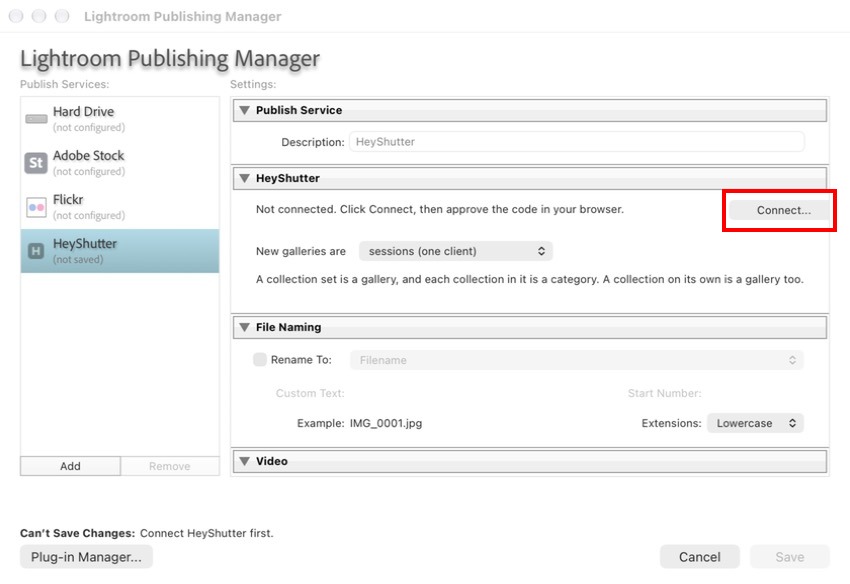
Lightroom Publishing Manager. Connect… in the HeyShutter section. - STEP 3 OF 5
Lightroom shows a code
Lightroom shows a short code, like VSXX-CTQJ, and waits. Your browser opens to HeyShutter by itself. There is nothing to type in Lightroom.
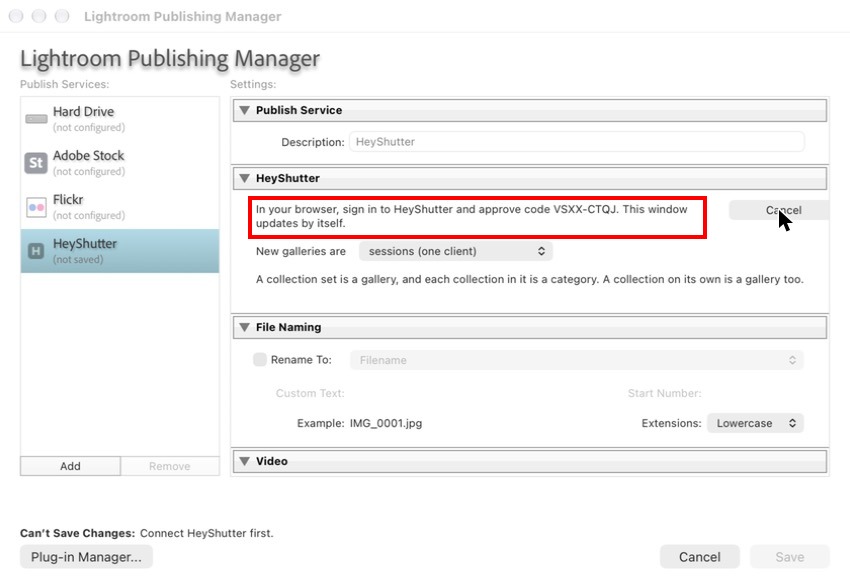
Lightroom waits while you approve the code. The window updates by itself. - STEP 4 OF 5
Approve the code in your browser
The HeyShutter page shows the same code. Check that it matches the one in Lightroom, then click Connect Lightroom. If the codes are different, click Cancel and start again from step 2.
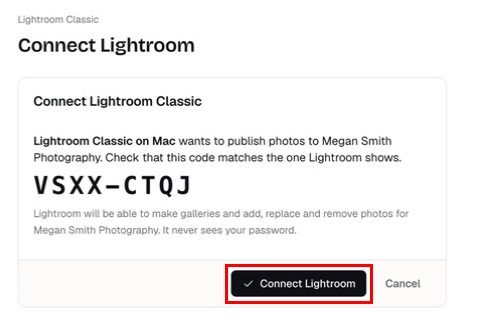
HeyShutter in your browser. Connect Lightroom. - STEP 5 OF 5
Save
Back in Lightroom, the window updates to say it is connected to your studio. Click Save at the bottom right. Lightroom remembers the connection, so you do this once per computer.
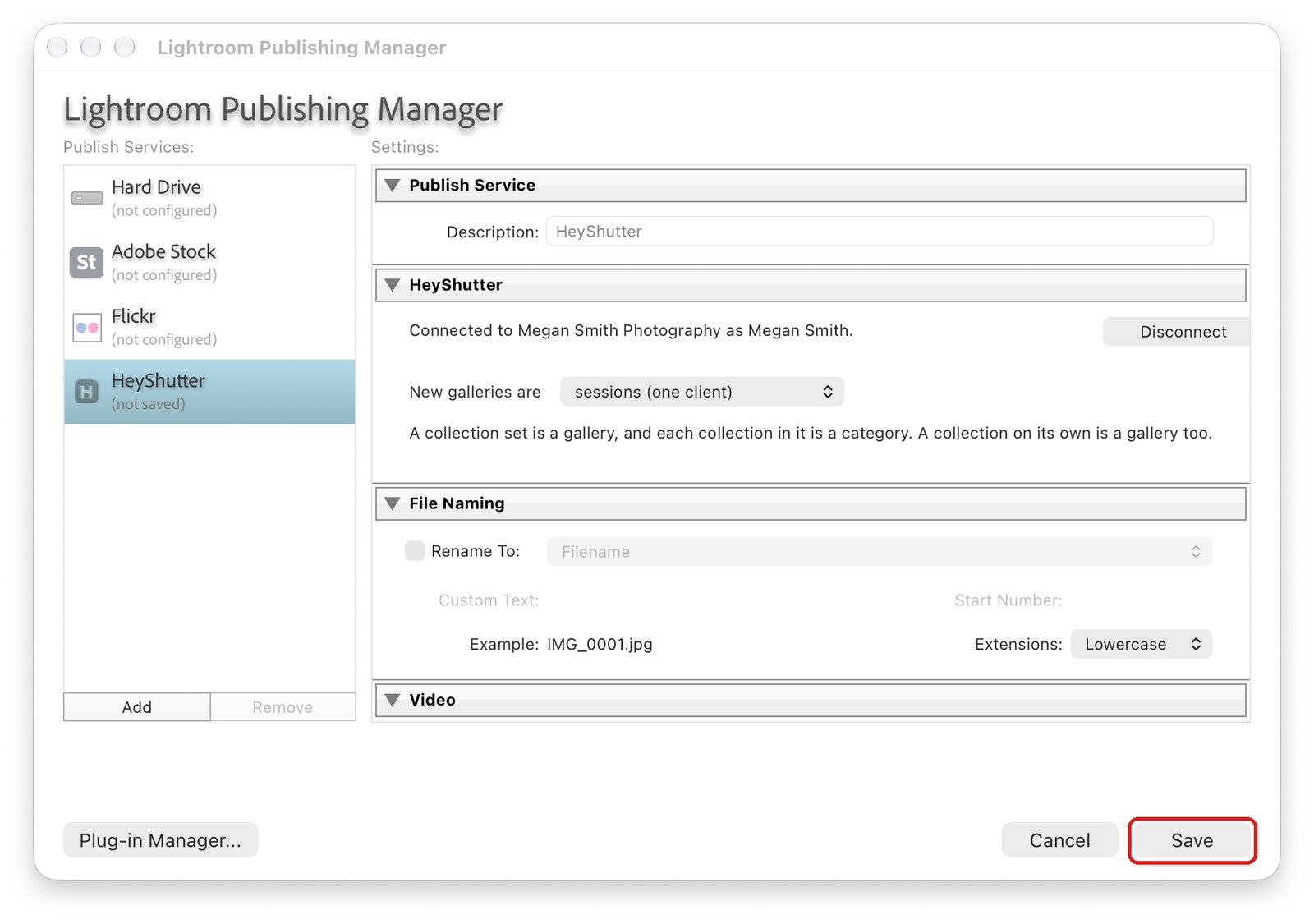
Connected. Click Save.
What you can do now
Questions
The code expired.
Codes only last a few minutes. Click Connect… in Lightroom again for a new one, and approve it in your browser straight away.
I clicked Cancel in the browser by mistake.
Lightroom goes back to Not connected. Click Connect… again for a new code.
Lightroom says it was disconnected from HeyShutter.
Someone disconnected this computer under Settings, Lightroom in HeyShutter. Click Connect… and approve a new code to connect it again.
Does my HeyShutter password go into Lightroom?
No. Lightroom only ever gets a code that you approve in your browser, and you can disconnect it from HeyShutter at any time.
Stuck? Email [email protected] with a screenshot, or open Support from inside HeyShutter.