Before you start
- A gallery with photos.
- STEP 1 OF 5
Open the editor
On the gallery’s Photos tab, hover over a photo and click Edit, or double-click it.
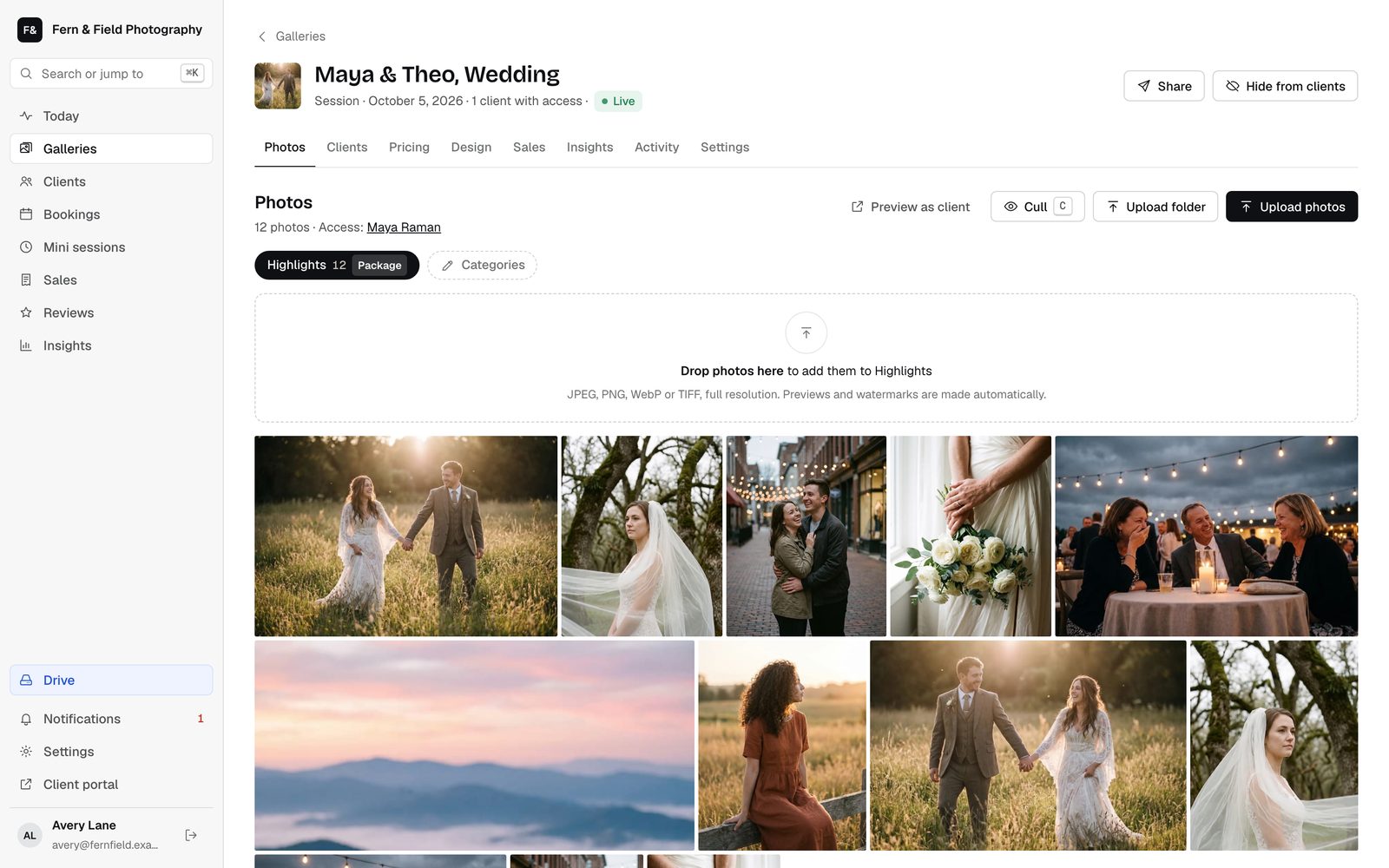
The Photos tab. - STEP 2 OF 5
Make your changes
Use Crop and straighten, Light and Color on the right. Click Before, or hold the backslash key, to compare. Undo and Redo are at the top.
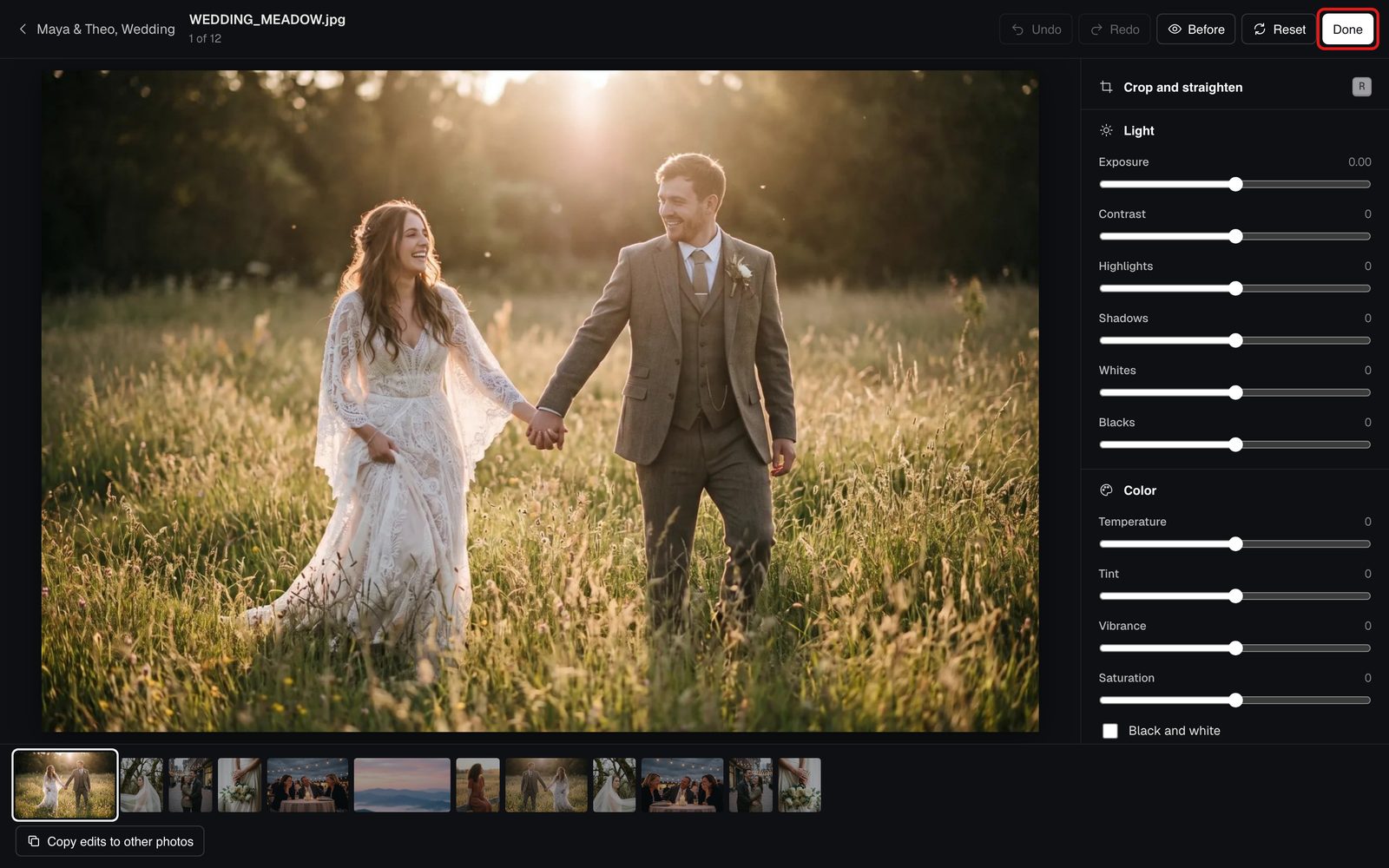
The editor. - STEP 3 OF 5
More tools
Further down are Tone curve, Color mixer, Color grading, AI eraser, Masks, Effects, Lens blur, Looks, and History and snapshots. AI eraser and Masks work on a computer, not a phone. Press ? to see every shortcut.
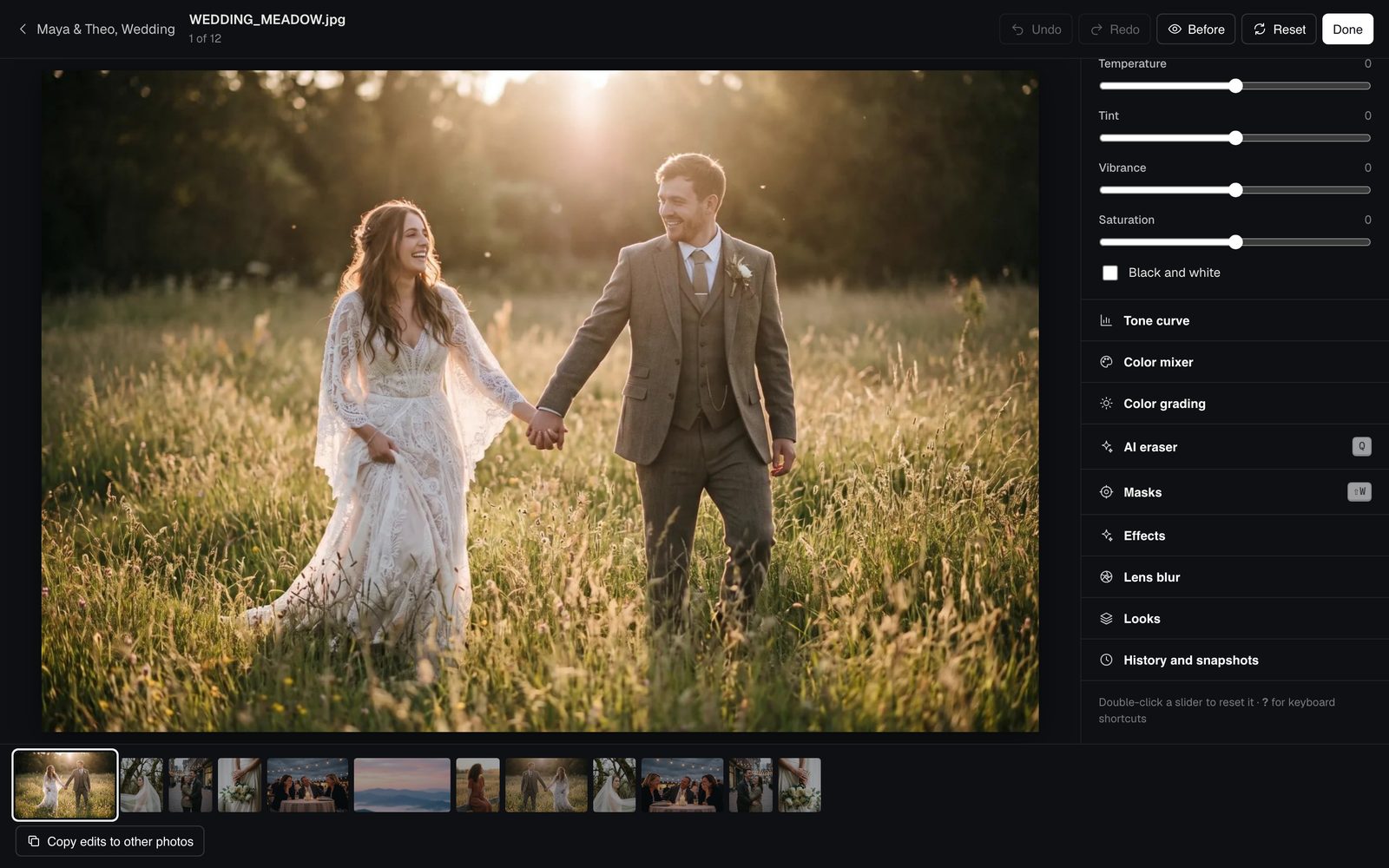
Every tool, one panel. - STEP 4 OF 5
Copy edits to other photos
Click Copy edits to other photos at the bottom. Pick the photos, choose Light, color and effects, or Everything, crop too, and click Apply.
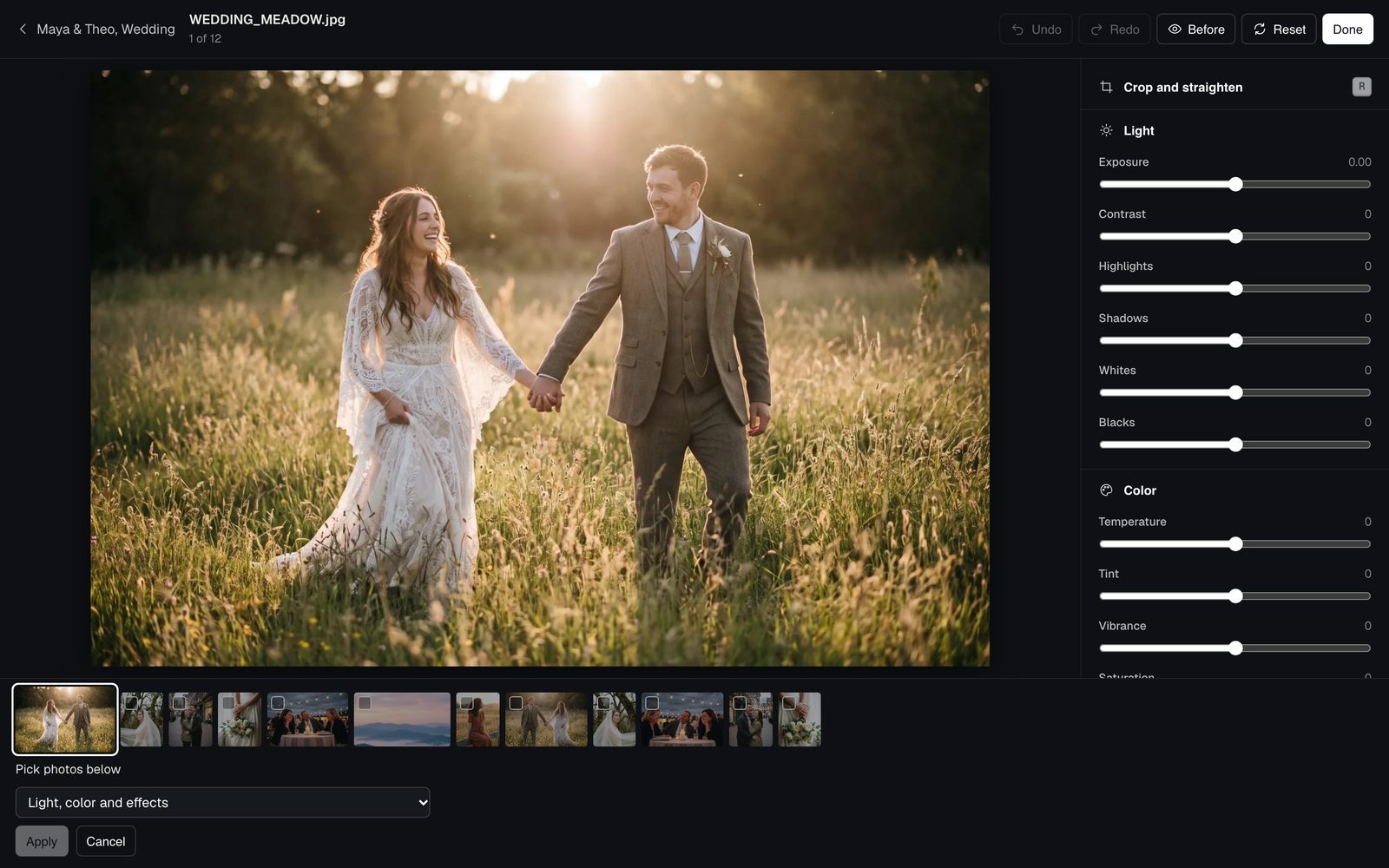
Copy one edit across a set. - STEP 5 OF 5
Click Done
Edits save by themselves a moment after you stop. Click Done to go back to the gallery, where the photo is marked Edited.
Good to know
Questions
Does the editor cost extra?
No. It comes with every plan.
How far back can I undo?
60 steps, and you can keep up to 20 snapshots of a photo.
Stuck? Email [email protected] with a screenshot, or open Support from inside HeyShutter.