Before you start
- Lightroom Classic with the HeyShutter plug-in, connected to your studio. See Connect Lightroom Classic to HeyShutter.
- The session backed up to your Drive. See Back up a memory card to Drive.
- STEP 1 OF 7
Open the session and click Send to Lightroom
Click Drive in the left menu and open the session’s folder. Click Send to Lightroom above the photos. The folder then says it was sent and comes in the next time Lightroom Classic is open with the plug-in.
Tip. Connected on more than one computer? HeyShutter asks which one to send it to.
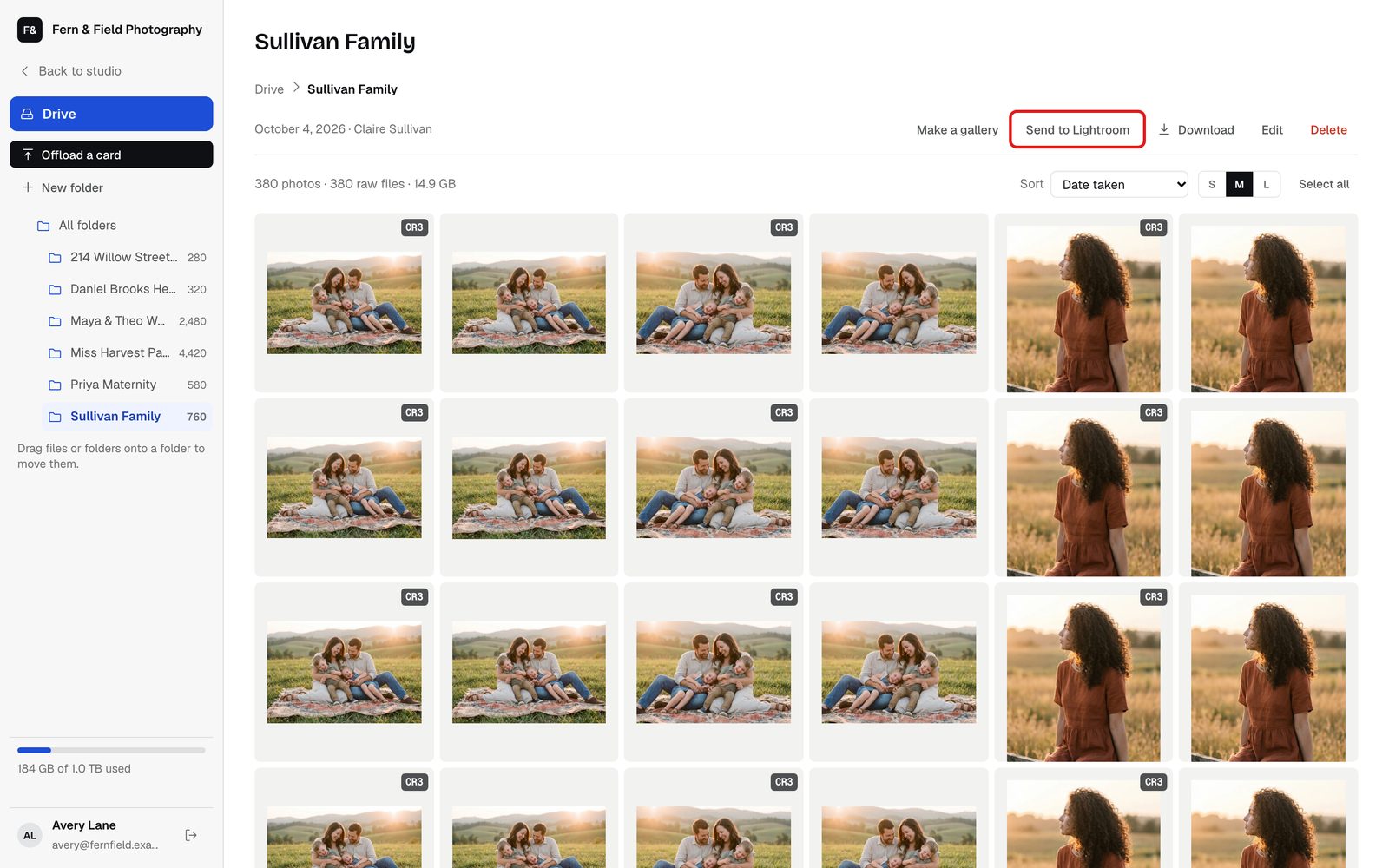
A session folder on Drive. - STEP 2 OF 7
Or send a few photos
Tick the photos you want, then click Send to Lightroom in the bar at the bottom. They go into the same folder and collection as the rest of the session.
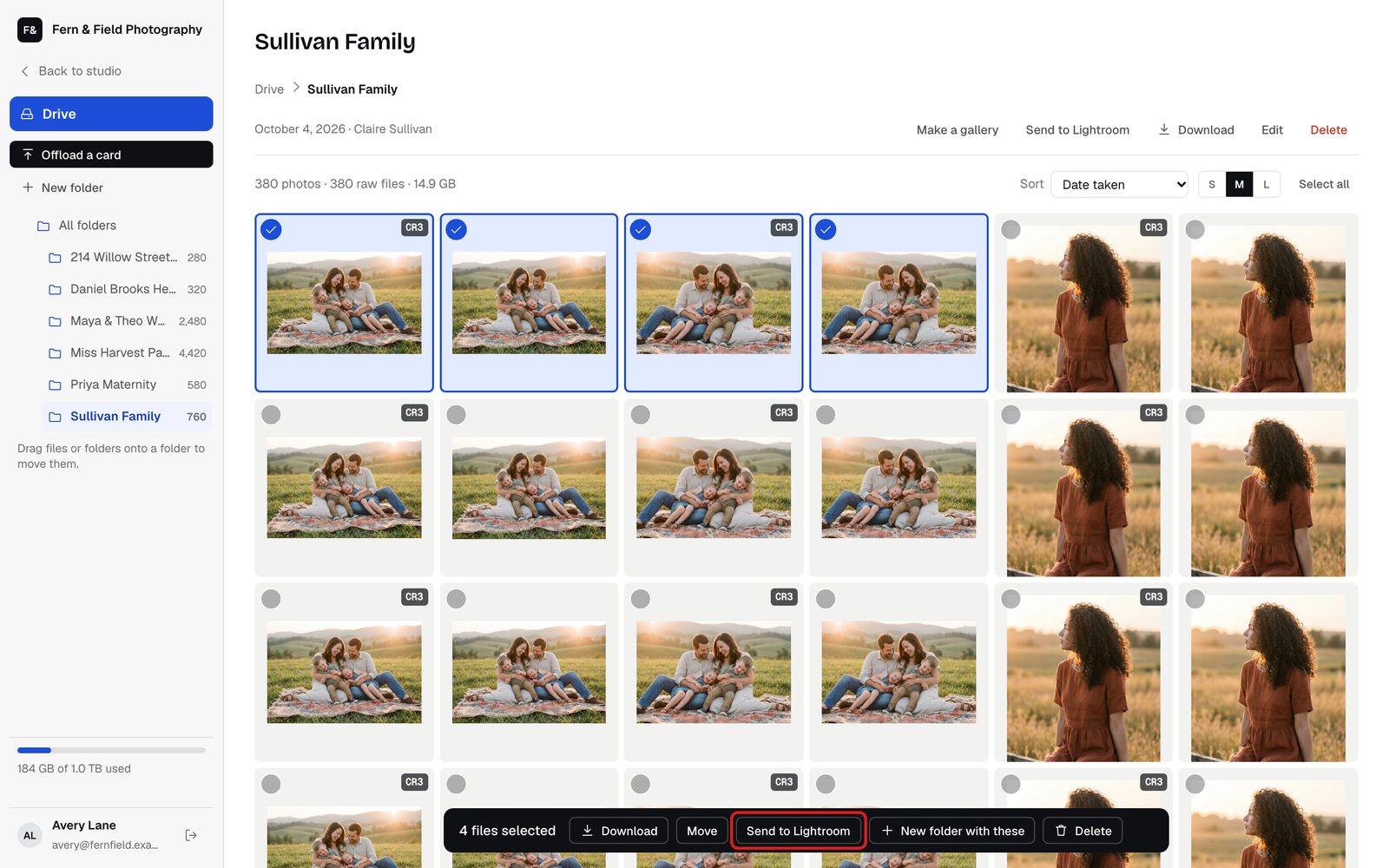
Send just the photos you pick. - STEP 3 OF 7
Or send one photo
Open a photo and click Send to Lightroom at the bottom of the viewer.
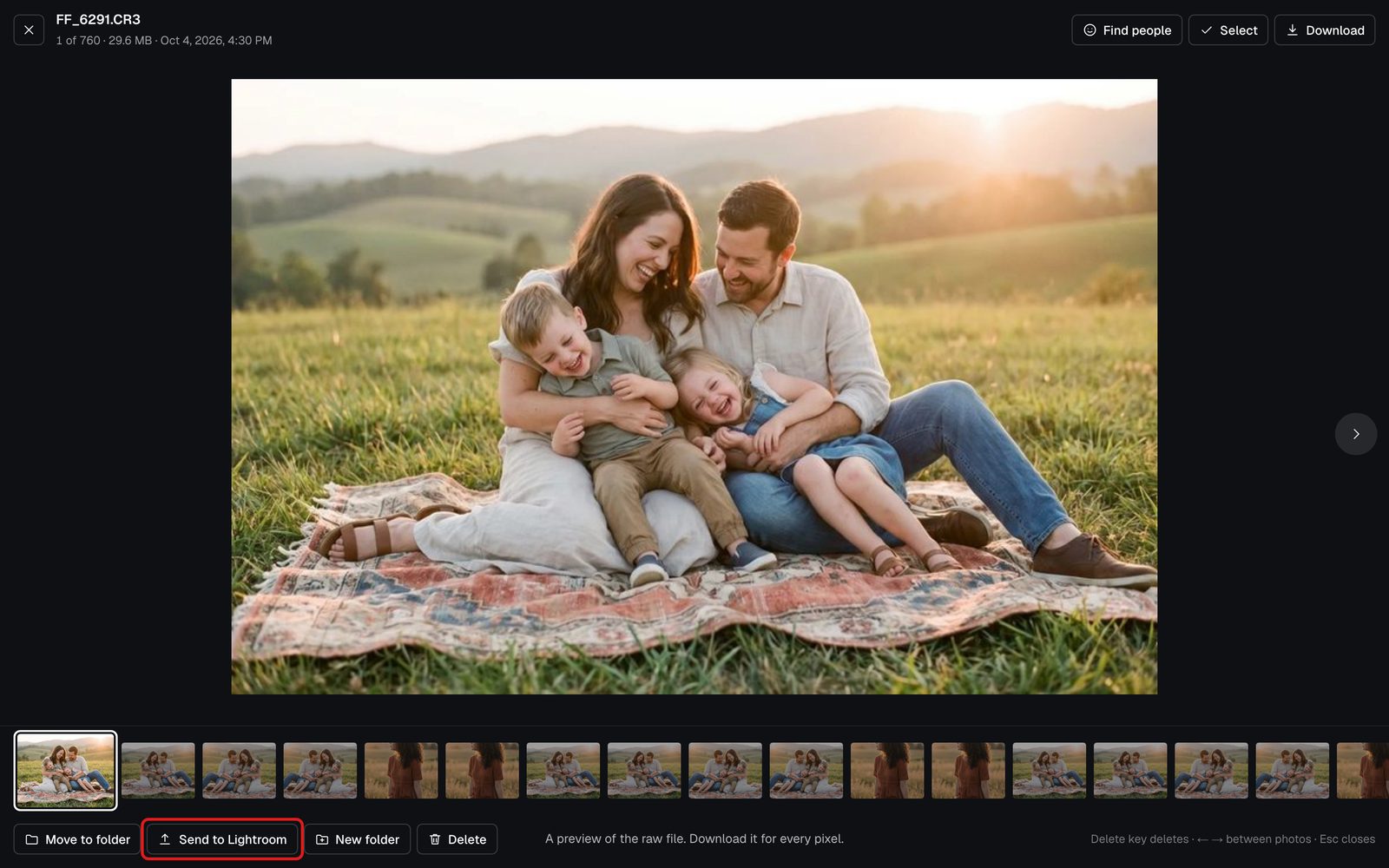
One photo from the viewer. - STEP 4 OF 7
Open Lightroom Classic
The plug-in looks for sessions 15 seconds after Lightroom opens, then every two minutes while it stays open. To look straight away, choose Library, Plug-in Extras, Bring in sessions sent from HeyShutter.
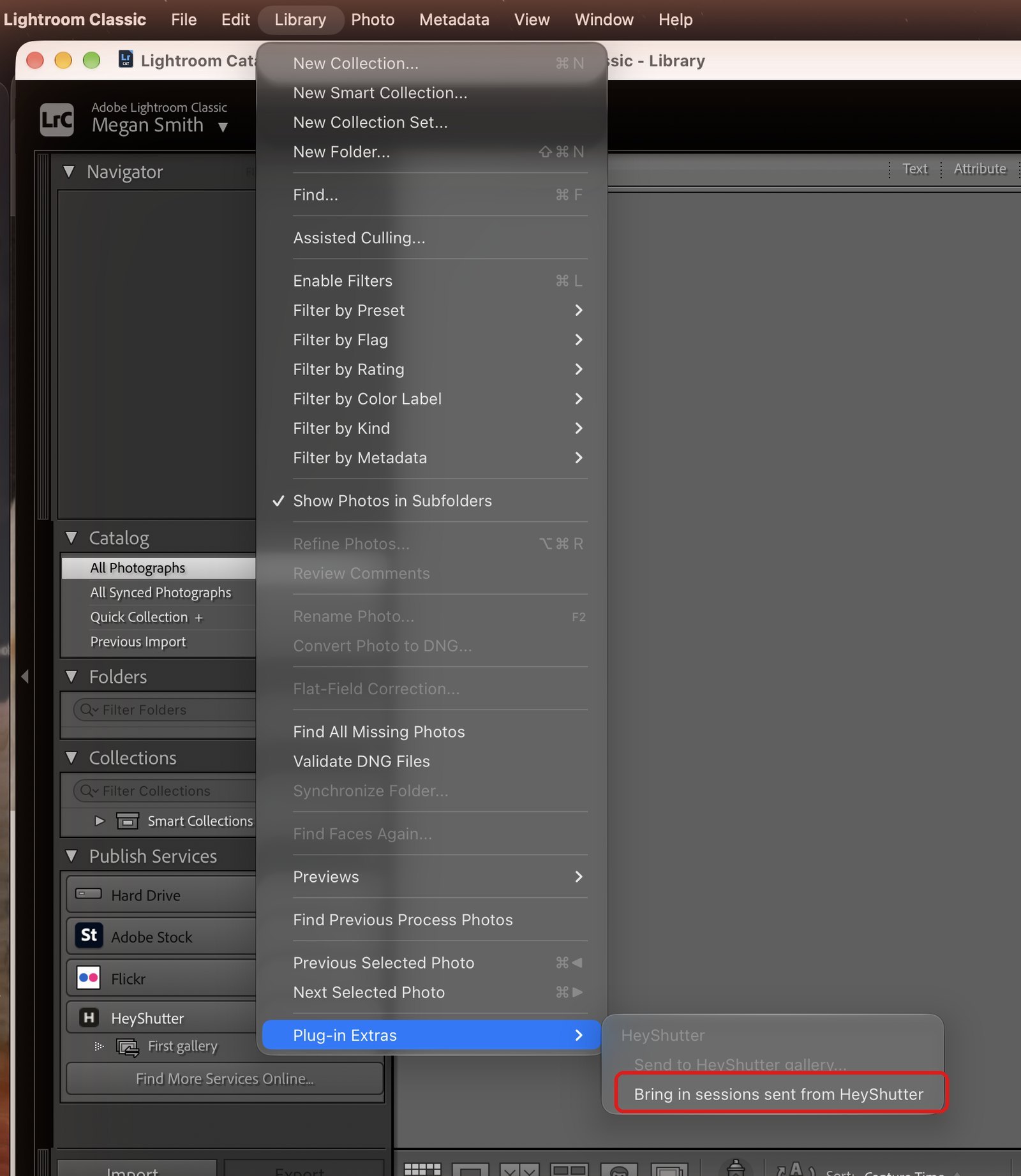
Library, Plug-in Extras. - STEP 5 OF 7
Or click Check now
File, Plug-in Manager, HeyShutter has the same check under Sessions from the HeyShutter Backup Drive. Click Check now. The two boxes above it turn automatic checks and the Import offer for big sessions on or off.
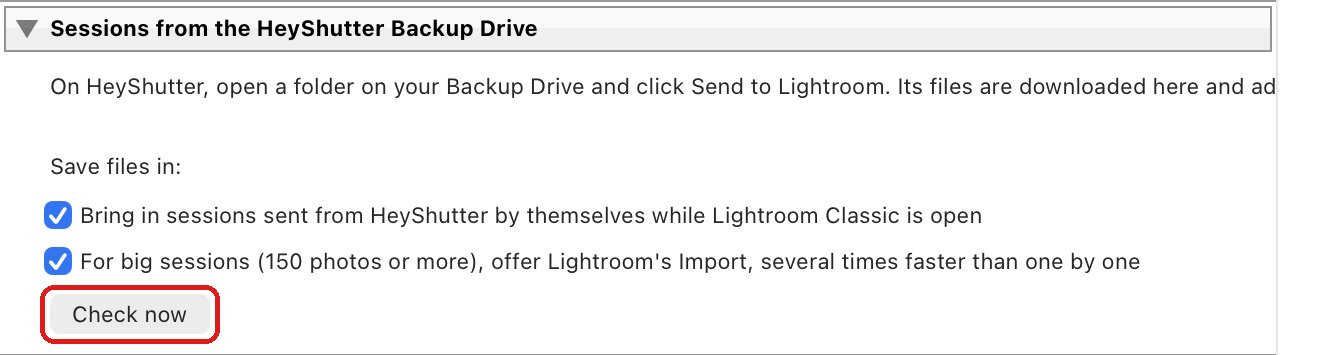
File, Plug-in Manager, HeyShutter. - STEP 6 OF 7
Big session? Use Lightroom’s Import
For 150 photos or more, the plug-in downloads the files and then offers Lightroom’s own Import, which is several times faster. Click Open Import, choose Add at the top, set Build Previews to Minimal on the right and click Import. Or click Add one by one to let it add about a photo a second in the background.
- STEP 7 OF 7
Find the session
When it is done, the photos are under Collections, in the HeyShutter Backup set, in a collection named after the session. The files are saved in Pictures, HeyShutter, in a folder for the session.
Good to know
Questions
Nothing came in.
Make sure Lightroom Classic is open and connected, then choose Library, Plug-in Extras, Bring in sessions sent from HeyShutter. If it says nothing is waiting, send the folder again from Drive.
How long does it take?
Files download eight at a time and carry on where they left off if the connection drops. A big wedding can take a while, so leave Lightroom open.
Which plan do I need?
Sending from Drive works on any plan with Drive. Publishing to galleries needs 35mm or higher.
Stuck? Email [email protected] with a screenshot, or open Support from inside HeyShutter.