Before you start
- Drive on your studio. Start the 14-day free trial under Drive, with 50 GB and no card, or add Drive at $20 per terabyte a month.
- The memory card in your computer’s card reader.
- STEP 1 OF 5
Click Offload a card
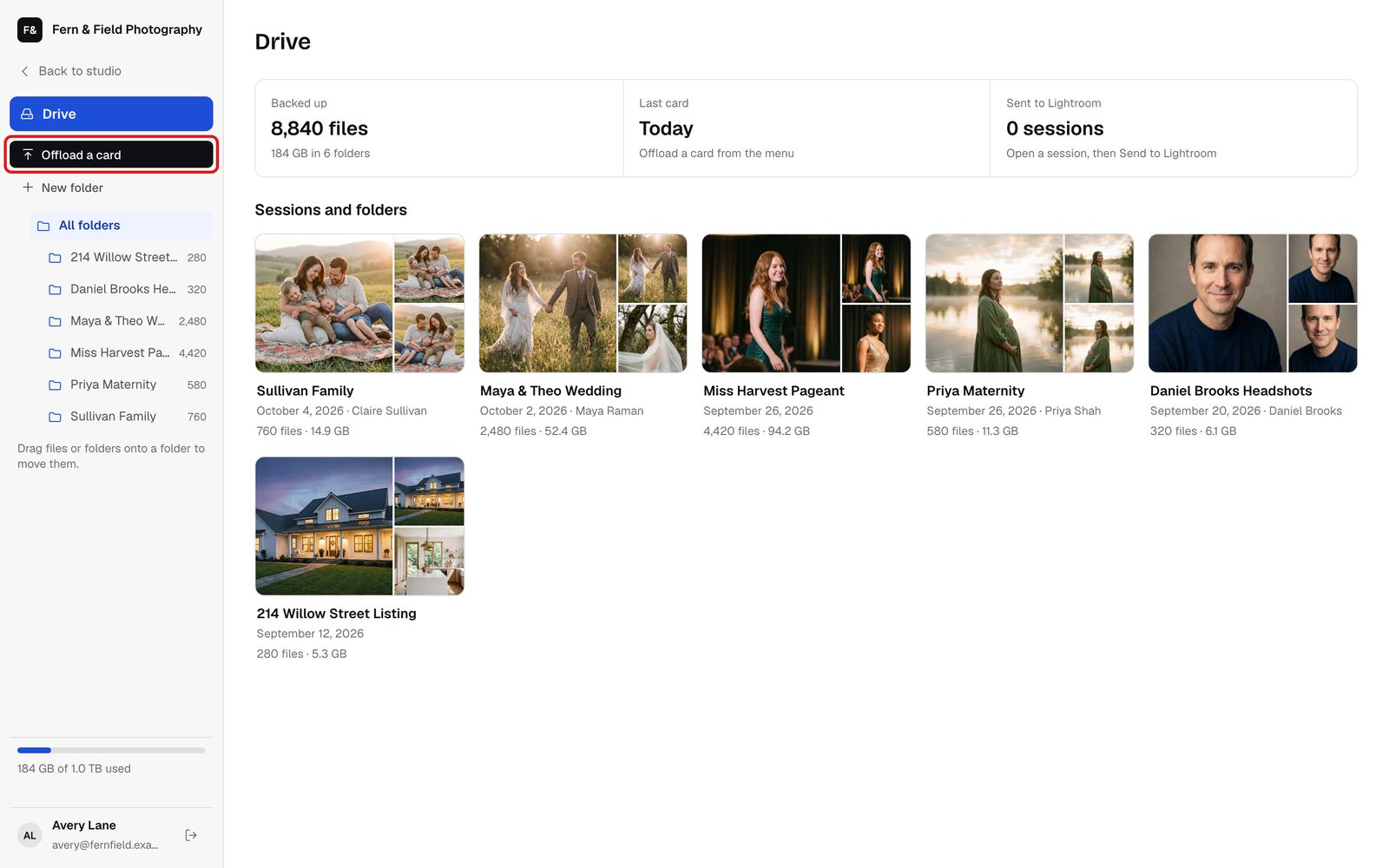
Click Drive in the left menu, then Offload a card. You can also drag the card, or several folders at once, onto the page. Each folder becomes its own session unless you put them all in one.
Drive. - STEP 2 OF 5
Choose the card
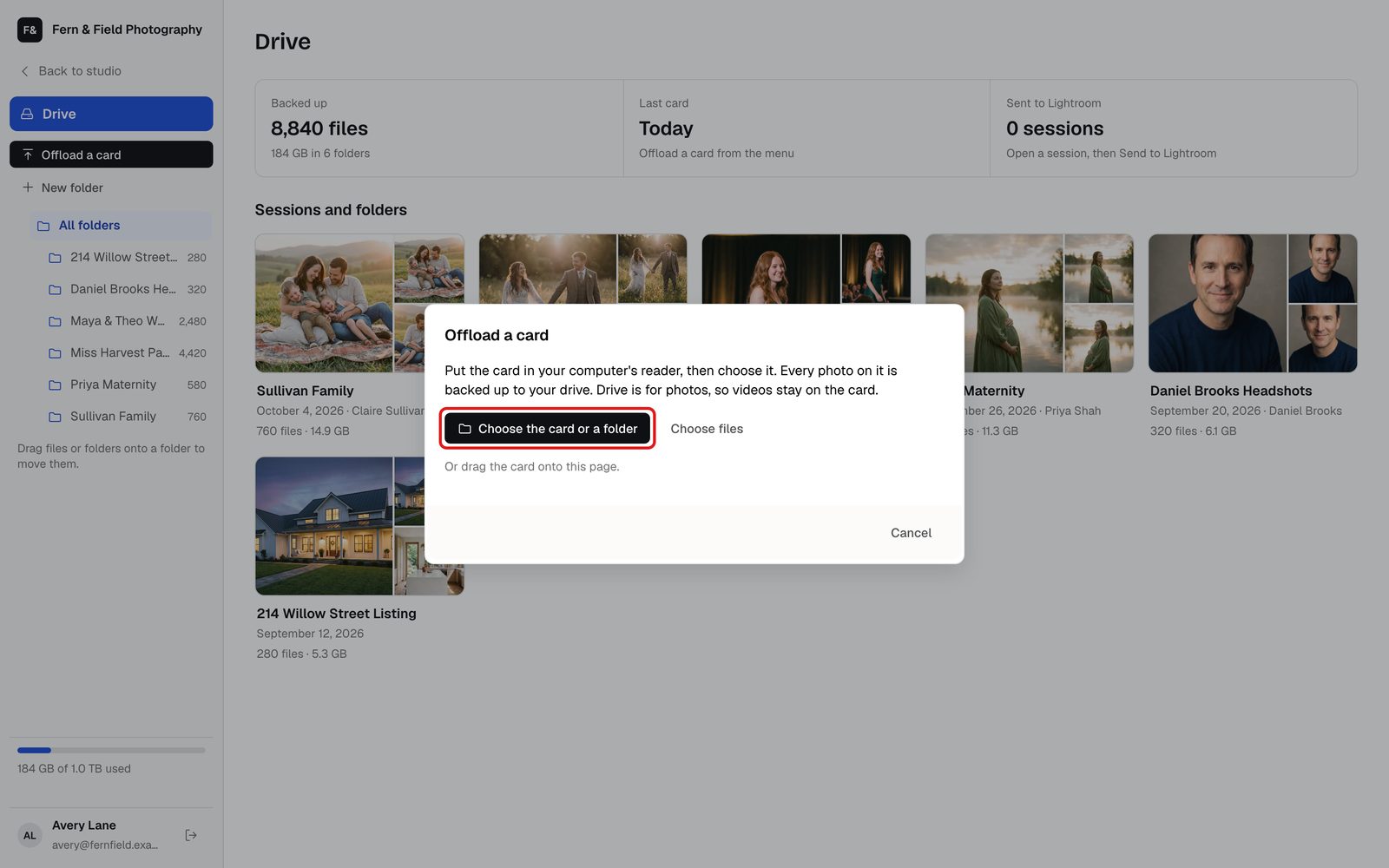
Click Choose the card or a folder and pick the memory card. Choose files works too if you only want some of it.
Offload a card. - STEP 3 OF 5
Name the session and start
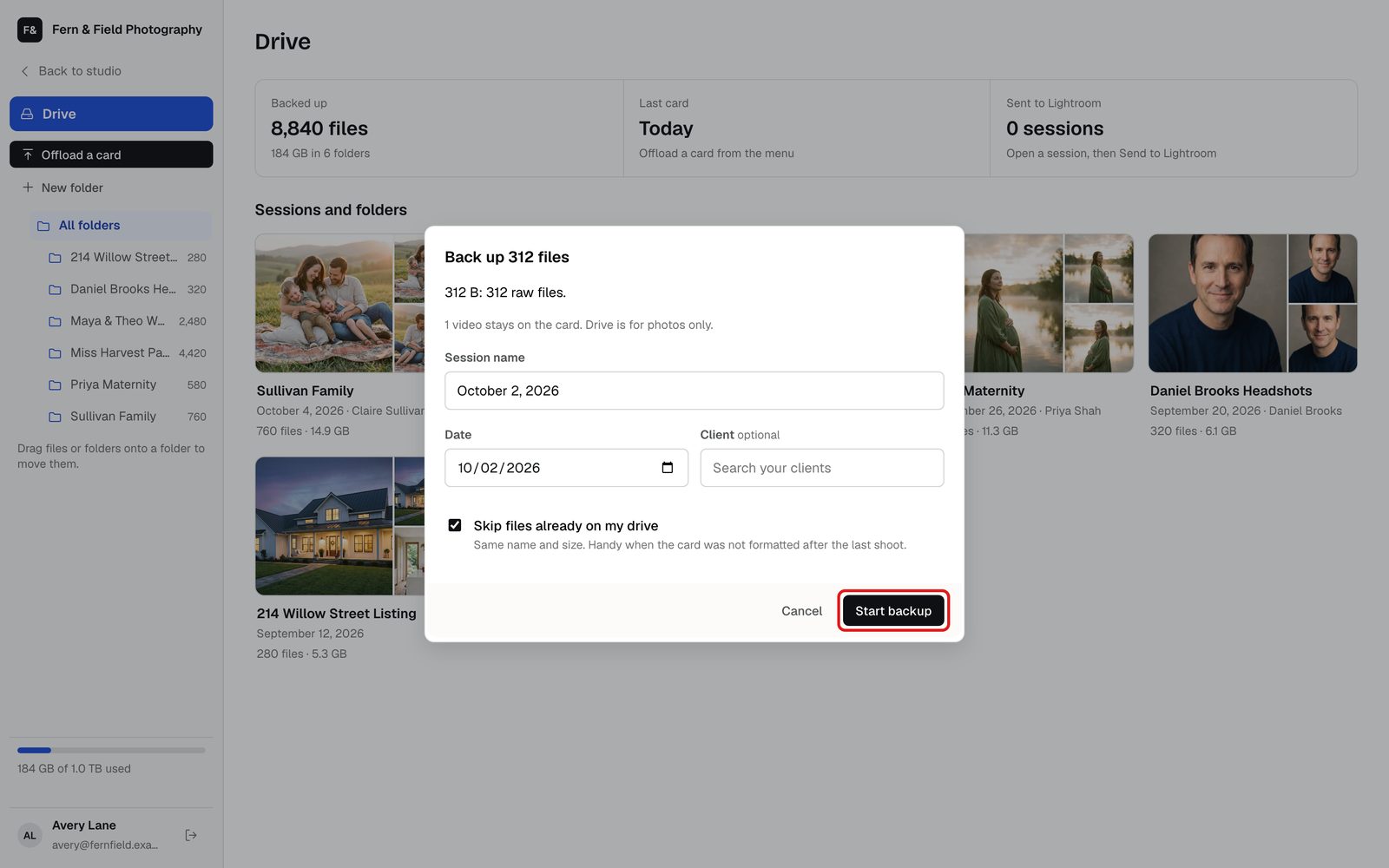
Drive names the session after the earliest photo date. Pick a client to name it after them, or type your own. Leave Skip files already on my drive ticked if you did not format the card since the last backup. Click Start backup.
Tip. Inside a folder, you can put the card in a new session inside it or straight into it.
Name it and start. - STEP 4 OF 5
Keep the uploads window open
The HeyShutter uploads window does the uploading, so you can keep using HeyShutter while it works, and start another card too. Keep that window open until it finishes. Files go up five at a time, and any that fail are tried again.
- STEP 5 OF 5
Wait for Safe to format the card
When every file is in, Drive says the session is backed up, with the number of files. Format the card only when it also says Safe to format the card. If some files failed, click Try them again and keep the card until they are in.
What Drive keeps
Questions
Does Drive use my gallery storage?
No. Drive is separate from your plan’s gallery storage.
How do I know nothing was missed?
A file only counts as backed up once HeyShutter has all of it and its size matches the file on the card.
What does Skip files already on my drive do?
It skips a file when one with the same name and size is already anywhere on your Drive. Handy when the card was not formatted after the last shoot.
Can I close my laptop?
Not until it finishes. Keep the HeyShutter uploads window open; other tabs, apps and HeyShutter pages are fine.
Stuck? Email [email protected] with a screenshot, or open Support from inside HeyShutter.