Before you start
- A gallery. See Create and share a client gallery.
- STEP 1 OF 5
Open the gallery’s Settings tab
Open the gallery, click Settings and find Downloads and tools.
- STEP 2 OF 5
Choose the sizes
Full size files are the original resolution, for printing. Web size files are 2048 pixels, for texting and social. Leave both on, or untick one.
- STEP 3 OF 5
Turn on Gallery PIN
Tick Gallery PIN. HeyShutter makes a random 4-digit PIN and shows it here. Tick Ask for the PIN to view too if clients should enter it before the gallery even opens. Click Save settings.
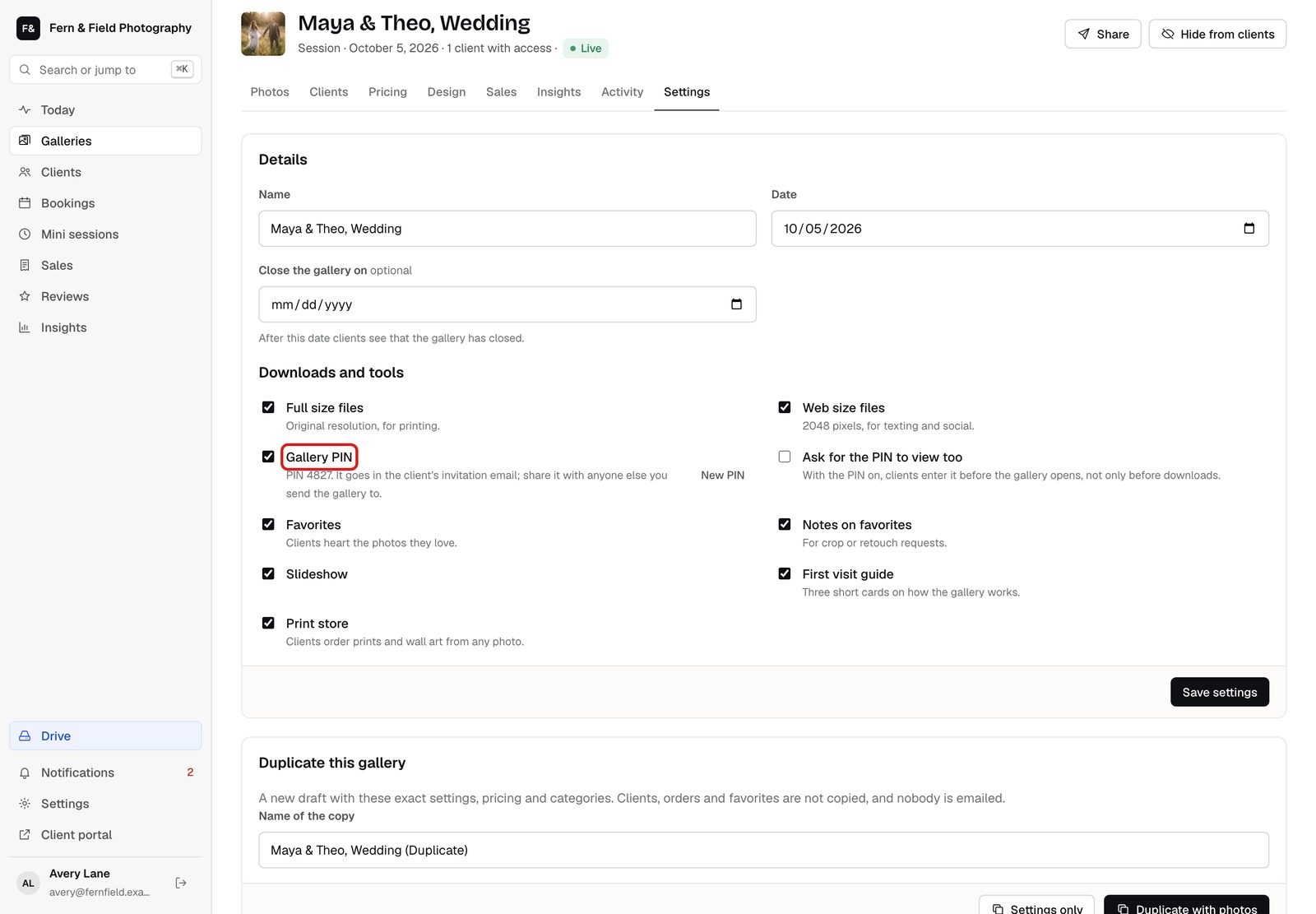
Settings tab, Downloads and tools. - STEP 4 OF 5
Send the PIN
The PIN is in the gallery email when you share it from HeyShutter. Sending the link yourself? Put the PIN in your message.
- STEP 5 OF 5
What your client sees
Before their first download, the client enters the 4-digit download PIN. Their browser remembers it for 30 days.
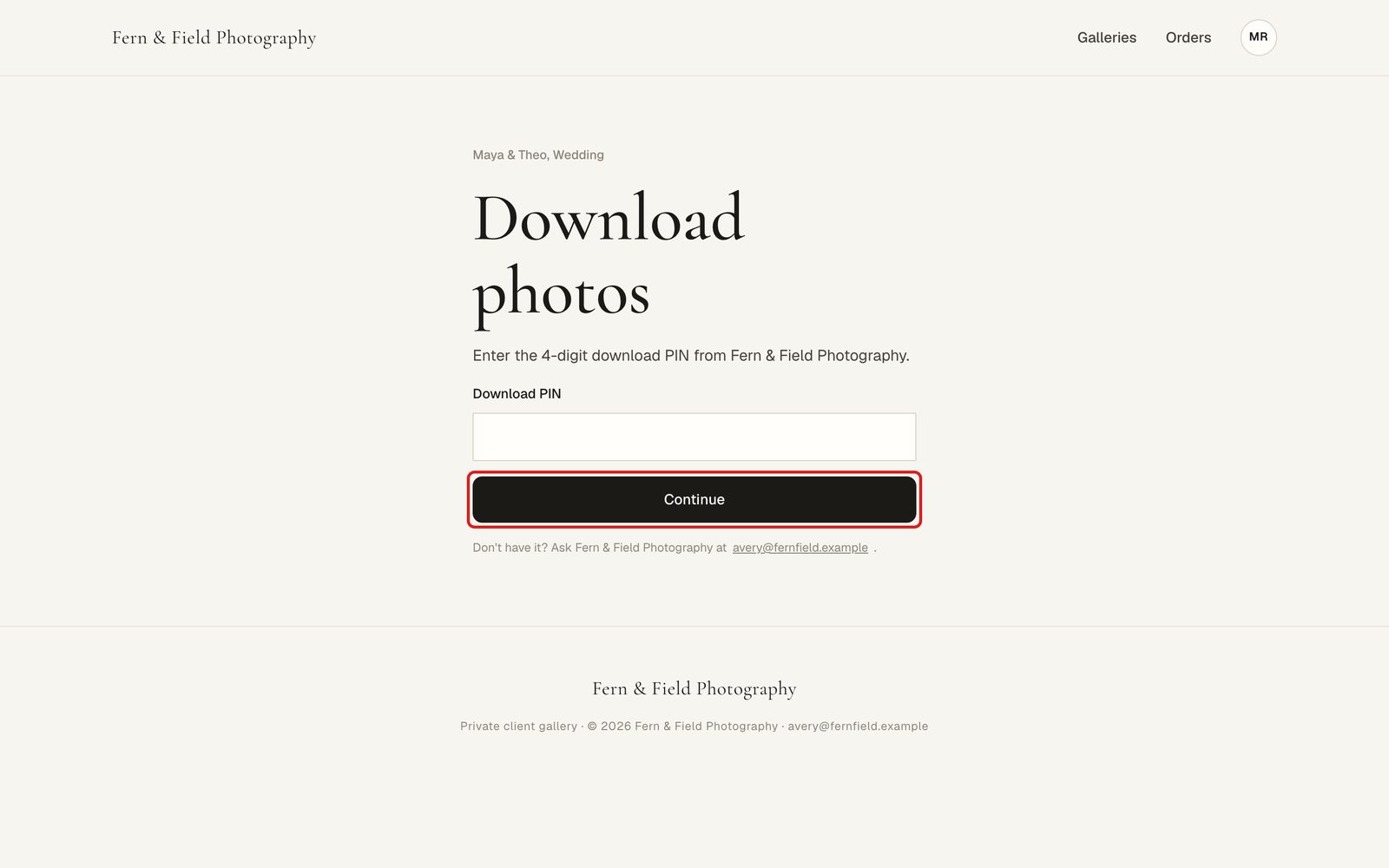
What the client sees.
Good to know
Questions
Can I use one PIN for every gallery?
No. Each gallery gets its own PIN when you turn it on.
My client lost the PIN.
Open the gallery’s Settings tab. The PIN is shown next to Gallery PIN.
Does the PIN stop people seeing the photos?
Only with Ask for the PIN to view too ticked. Otherwise anyone with the link can look, and the PIN guards downloads.
Stuck? Email [email protected] with a screenshot, or open Support from inside HeyShutter.