Before you start
- The gallery link from your photographer. You do not need an account.
- If the gallery asks for a download PIN, it is in the email from your photographer.
- STEP 1 OF 6
Open your gallery
Tap or click the link in the email or text from your photographer. When the photos are yours, Your photos are ready to download shows under the title.
- STEP 2 OF 6
On a computer, click Download all
Click Download all. The photos come as one zip file. Click Web size instead for smaller files, or Choose categories to pick.
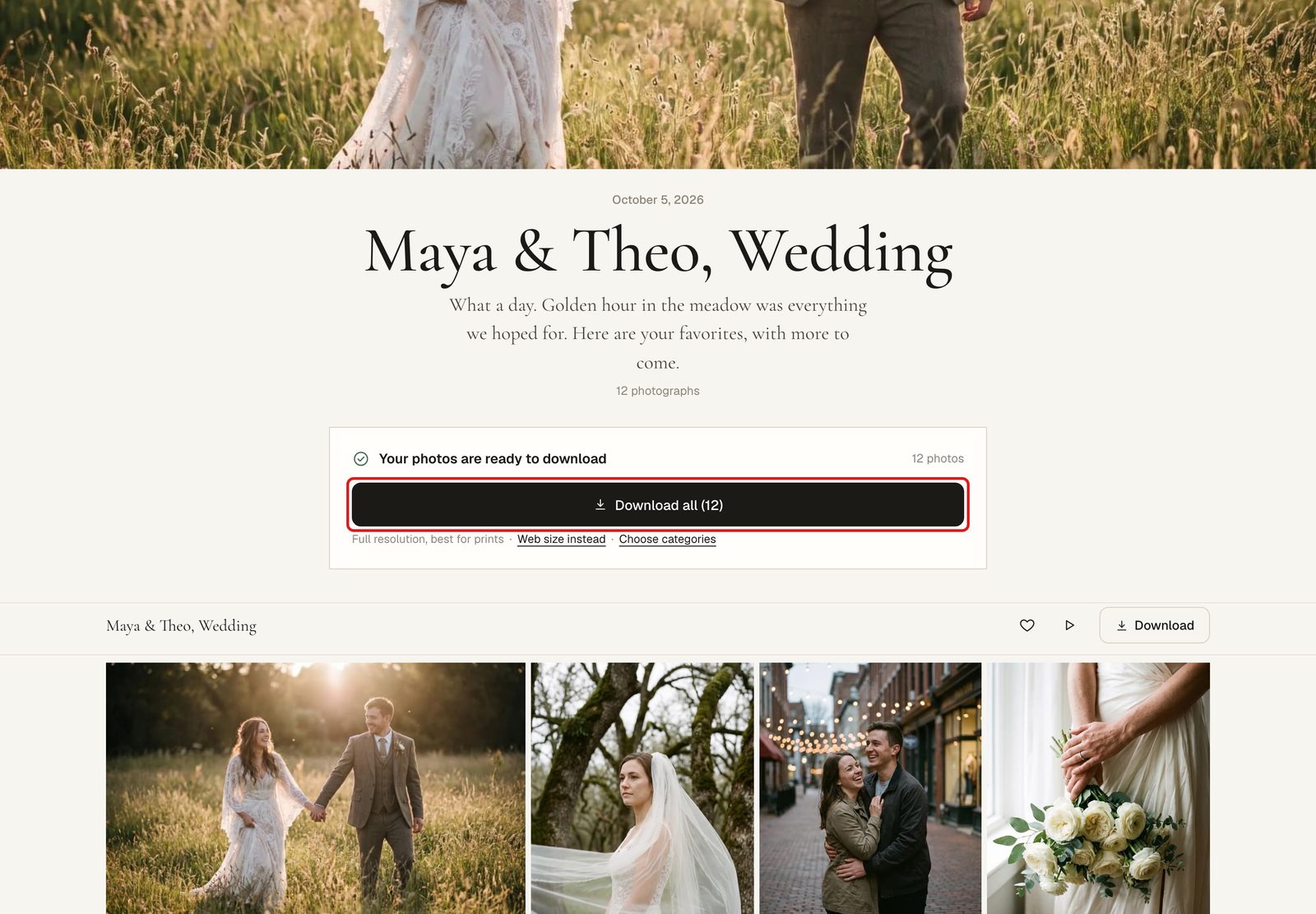
On a computer. - STEP 3 OF 6
On iPhone, tap Save all to my phone
Tap Save all to my phone. Your phone’s share menu opens: tap Save Images, not Save to Files. Photos save 10 at a time, so tap Save the next 10 until it says All saved.
Tip. Don’t see Save Images? Open Settings, Privacy & Security, Photos, Safari, and choose Add Photos Only.
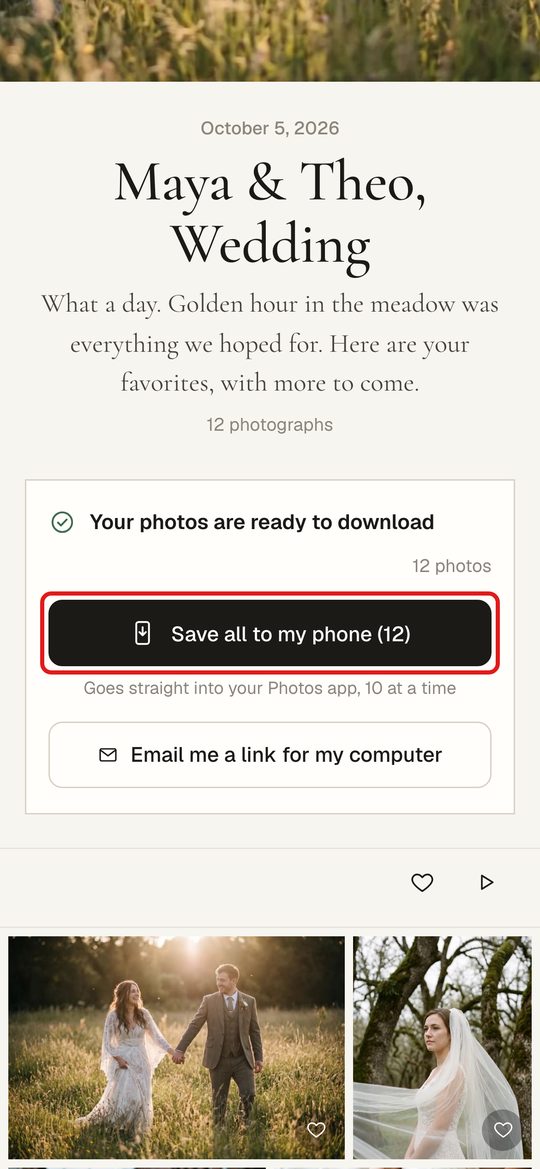
On an iPhone. - STEP 4 OF 6
Opened it inside Facebook or Instagram?
Apps like Facebook, Messenger and Instagram open links in their own browser, which cannot save to Photos. Tap Copy this page’s link and open it in Safari.
- STEP 5 OF 6
Save one photo
Open a photo and tap the download button at the top. Choose Full resolution for printing, Web size for texting, or a size ready for an Instagram post, a square or a story.
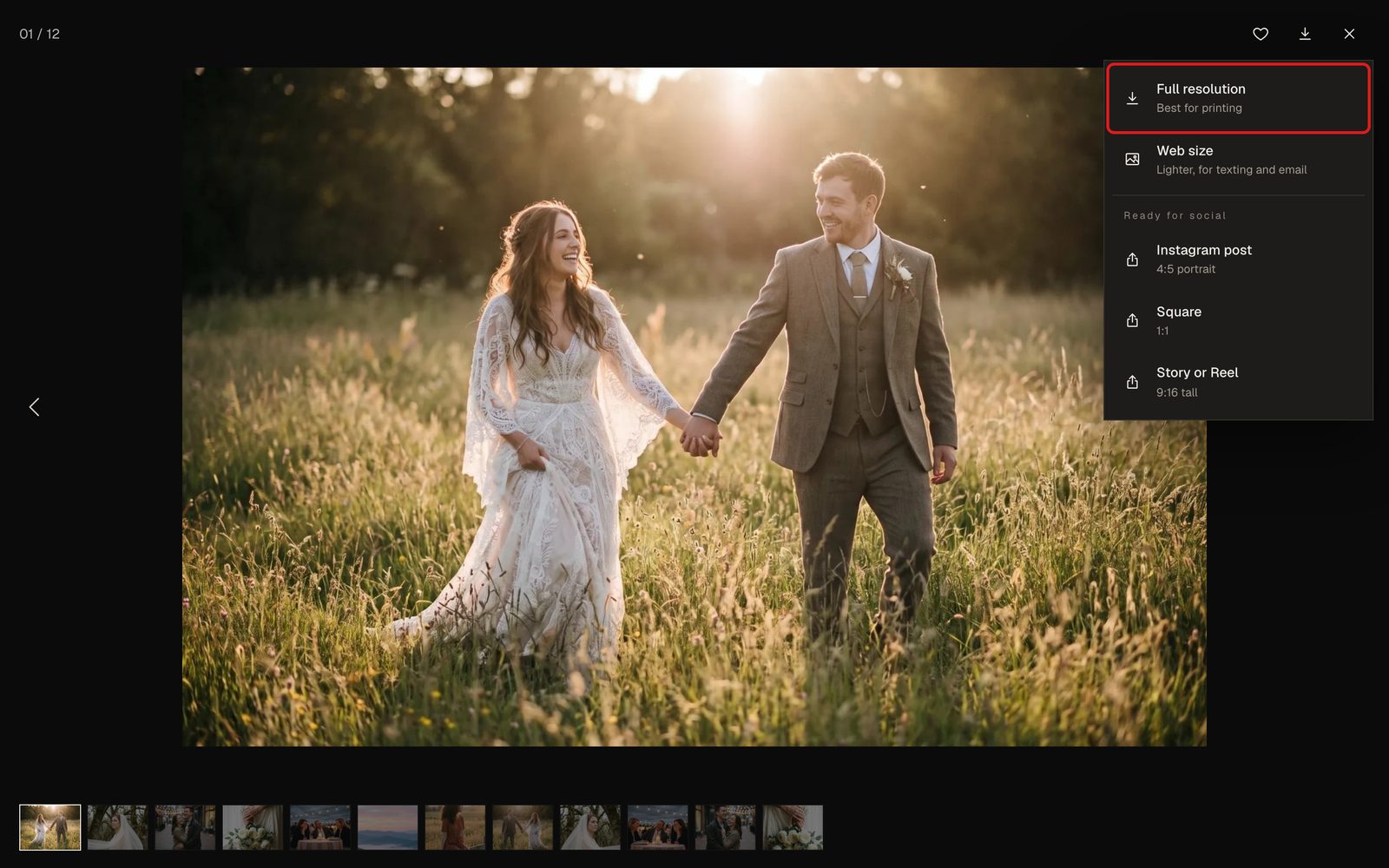
One photo, any size. - STEP 6 OF 6
Pick what to download
On a computer, the download page lets you choose all photos, one category or your favorites, in full resolution or web size. Click Start download.
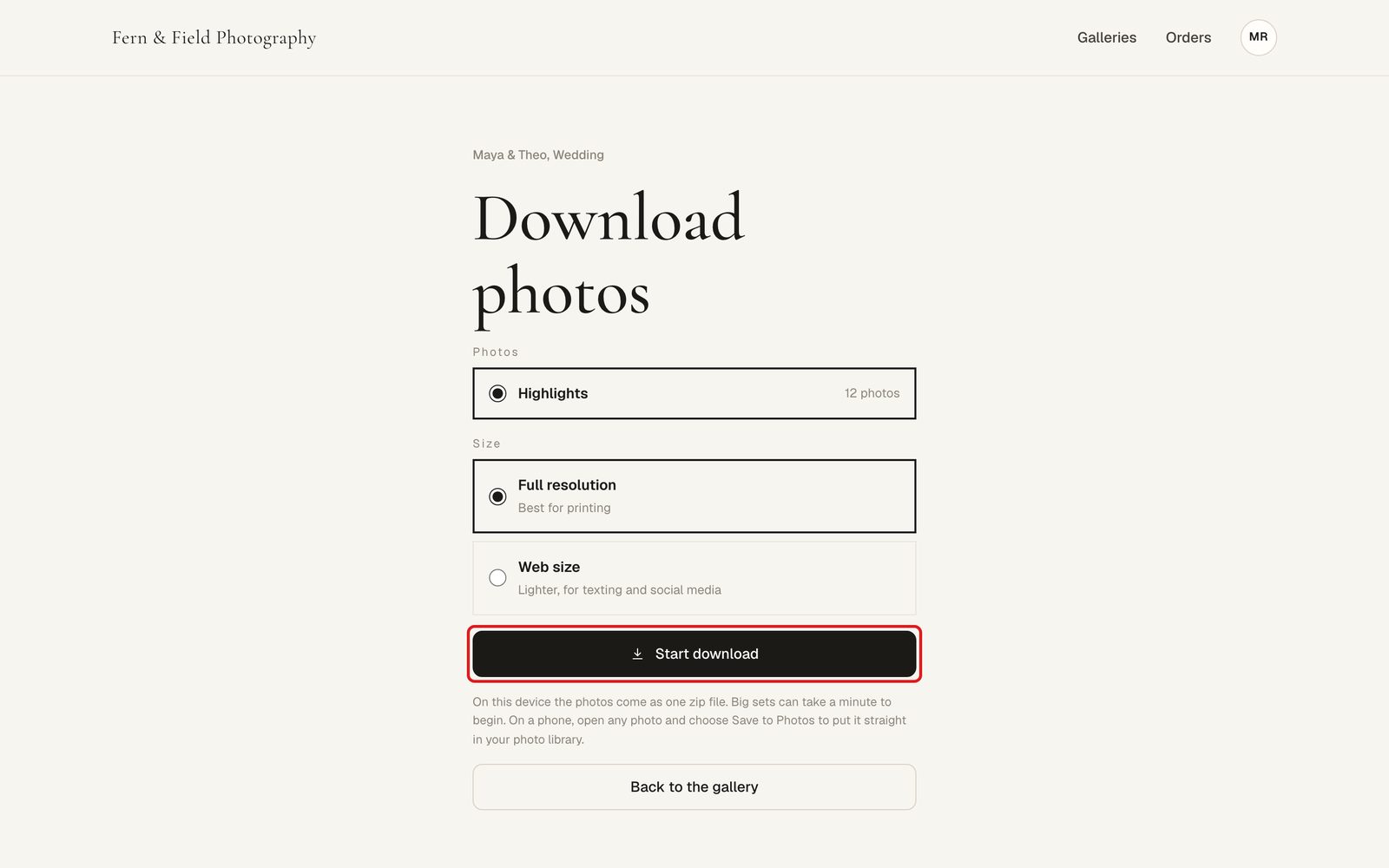
Choose the photos and the size.
Good to know
Questions
Do I need an account?
No. Your link opens your gallery.
Why 10 at a time on iPhone?
Your phone saves them in batches so nothing gets missed. Keep tapping Save the next 10 until it says All saved.
Who do I ask for help?
Your photographer first. If you cannot reach them, write to [email protected].
Stuck? Email [email protected] with a screenshot, or open Support from inside HeyShutter.