Before you start
- The Medium Format plan or higher. Booking comes with Medium Format and up.
- STEP 1 OF 7
Click New mini sessions
Click Mini sessions in the left menu, then New mini sessions.
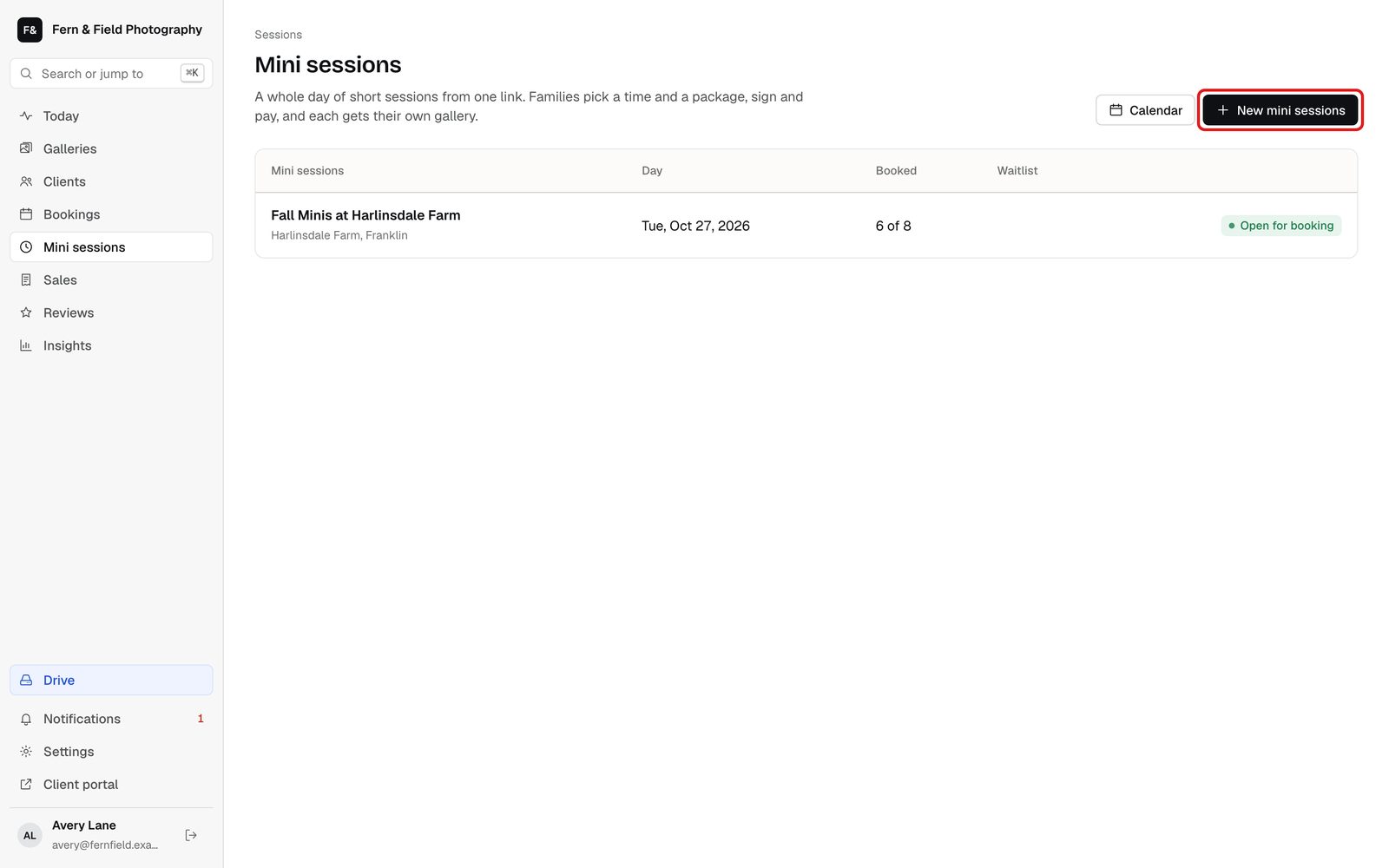
Mini sessions. - STEP 2 OF 7
Set the day
Under The day, add a name, the day, when the first session starts and when the last one ends. Set how long each session is, the gap between them and an optional break. Add the location and what families should know.
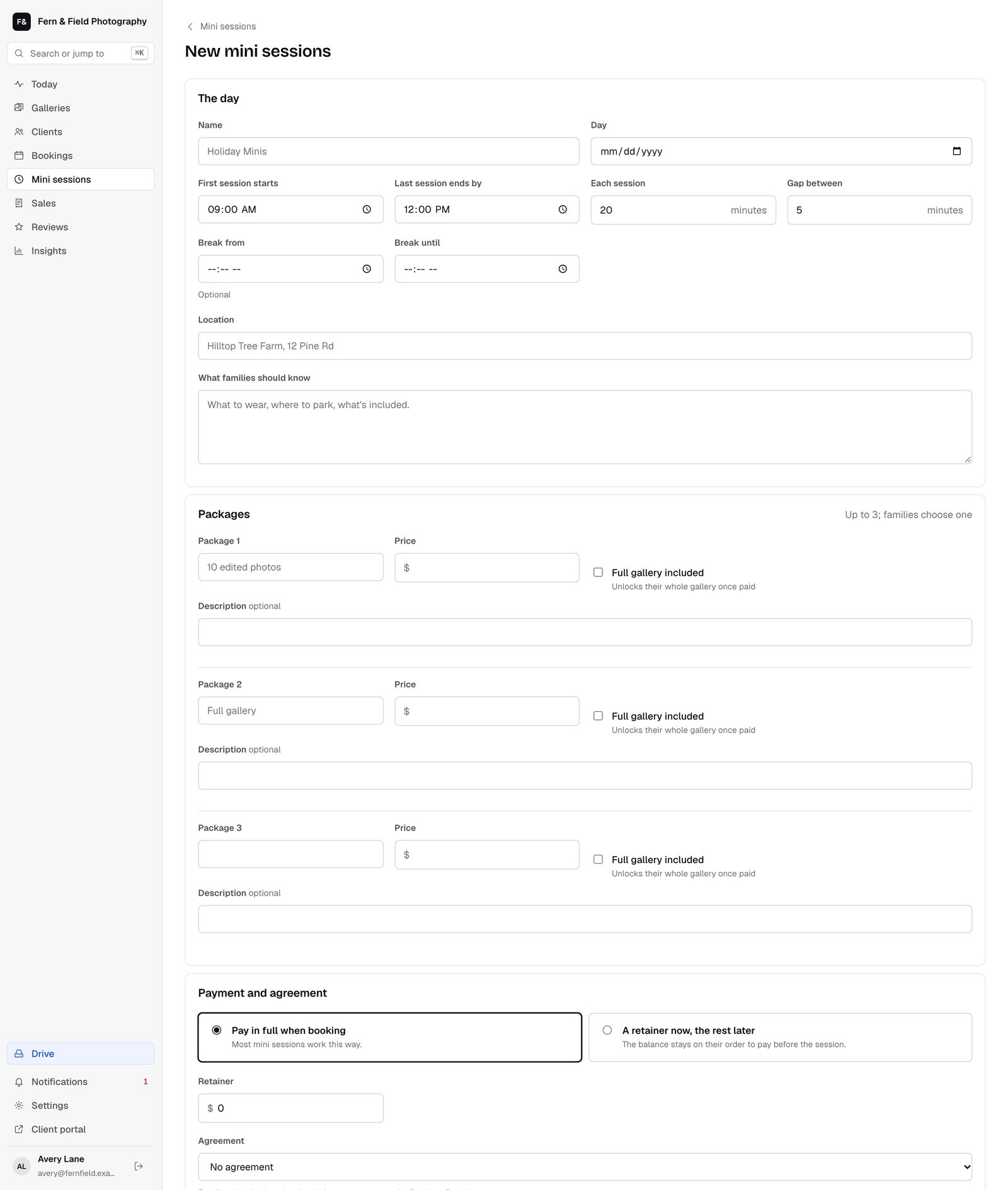
New mini sessions. - STEP 3 OF 7
Add packages
Add up to three packages, each with a price. Tick Full gallery included when that package unlocks the whole gallery once paid.
- STEP 4 OF 7
Choose payment and an agreement
Choose Pay in full when booking, or A retainer now, the rest later, with the retainer amount. Pick an agreement for families to sign. Set the booking page to Open for booking when you are ready, and click Create mini sessions.
Tip. New events start as a draft, so nothing is public until you open it.
- STEP 5 OF 7
Share the link
On the event page, Share it has the booking link to copy and a Button for your website to paste into your site.
Tip. If card payments are not connected, families book now and pay you directly, and you record the payment.
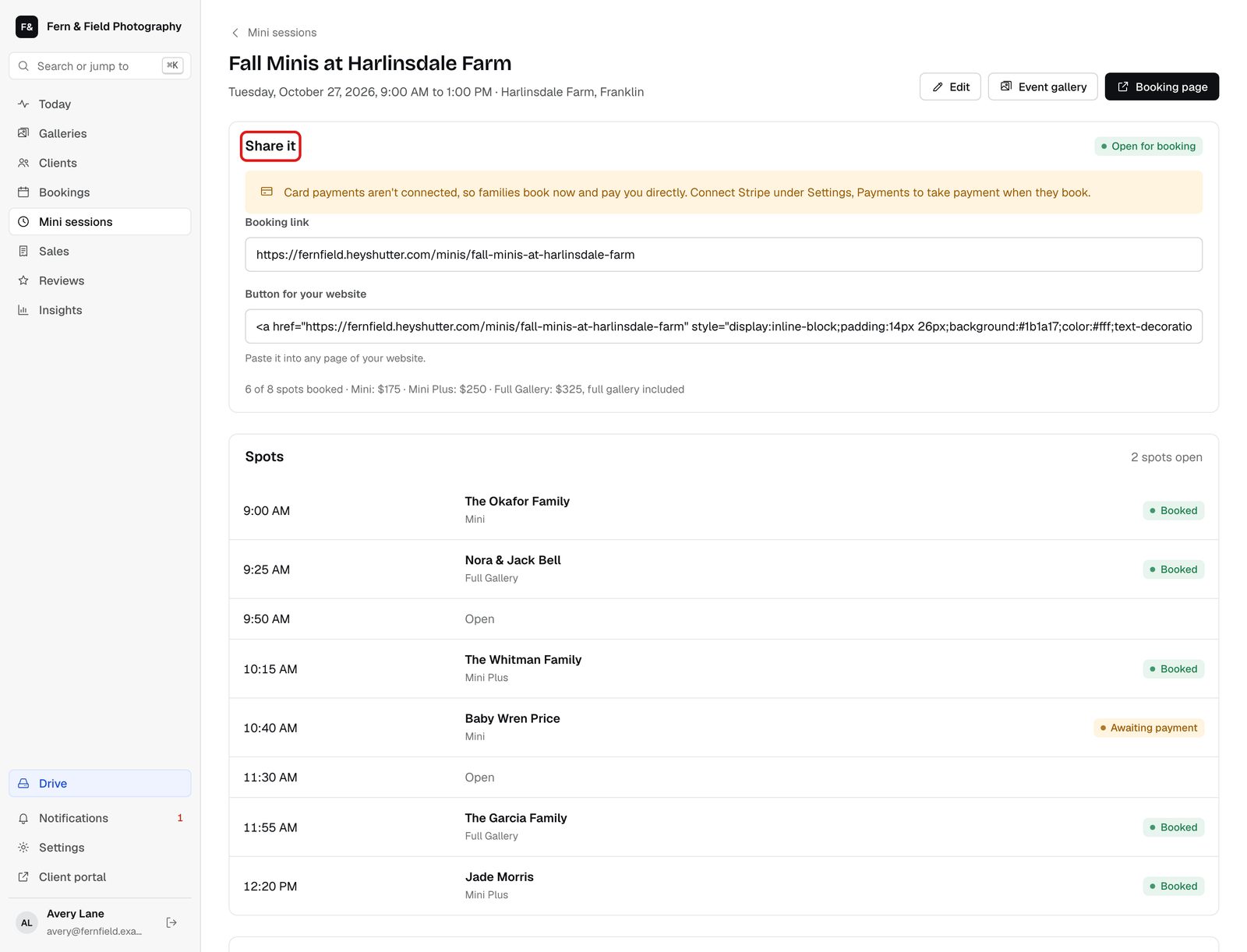
The event page. - STEP 6 OF 7
What families see
The booking page shows the open times, the packages and a form for their details, plus your agreement if you chose one. When every spot is taken, families can join the waitlist.
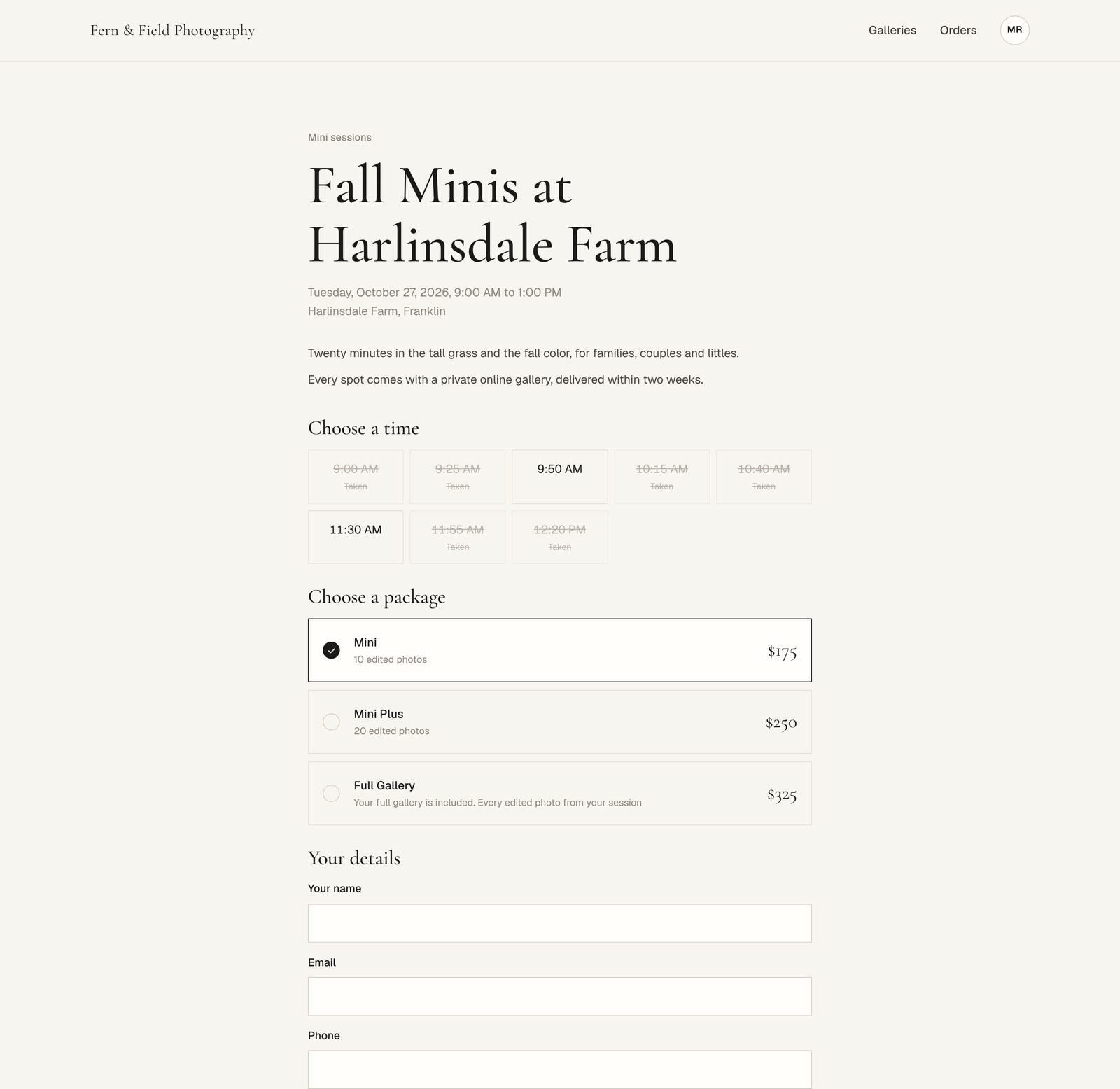
The booking page families see. - STEP 7 OF 7
Track bookings
Each booking shows in the event’s Spots list and on your Calendar. Each family gets its own gallery inside the event gallery.
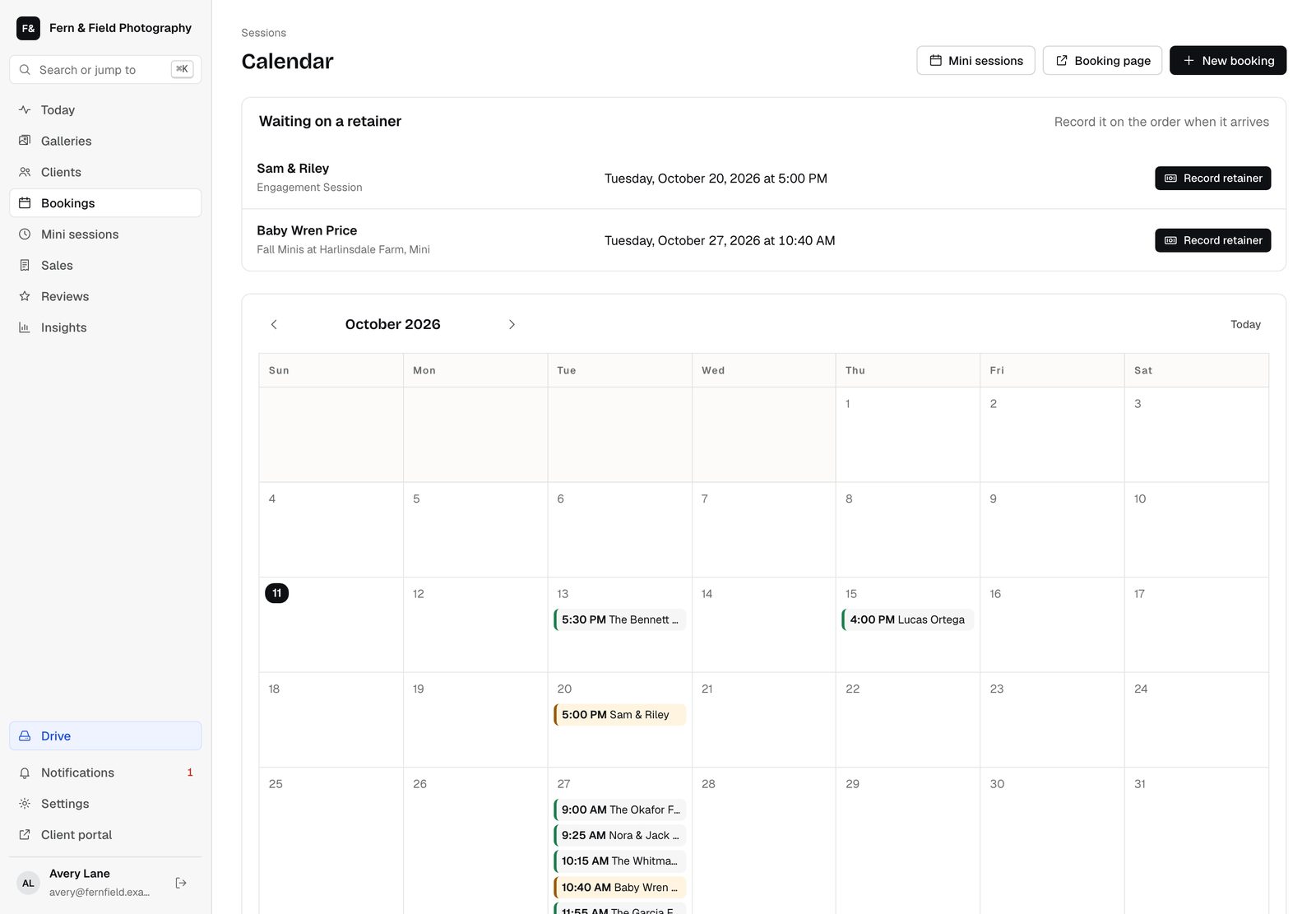
The Calendar.
Good to know
Questions
Can families pay by card?
When card payments are connected under Settings, Payments, families pay as they book. Until then they book now and pay you directly.
How many packages can I offer?
Up to three per mini session day.
Stuck? Email [email protected] with a screenshot, or open Support from inside HeyShutter.