Before you start
- Your mailing address. US law asks for one on promotional email, and a PO box is fine.
- STEP 1 OF 5
Open Sales emails
Open Settings and click Sales emails.
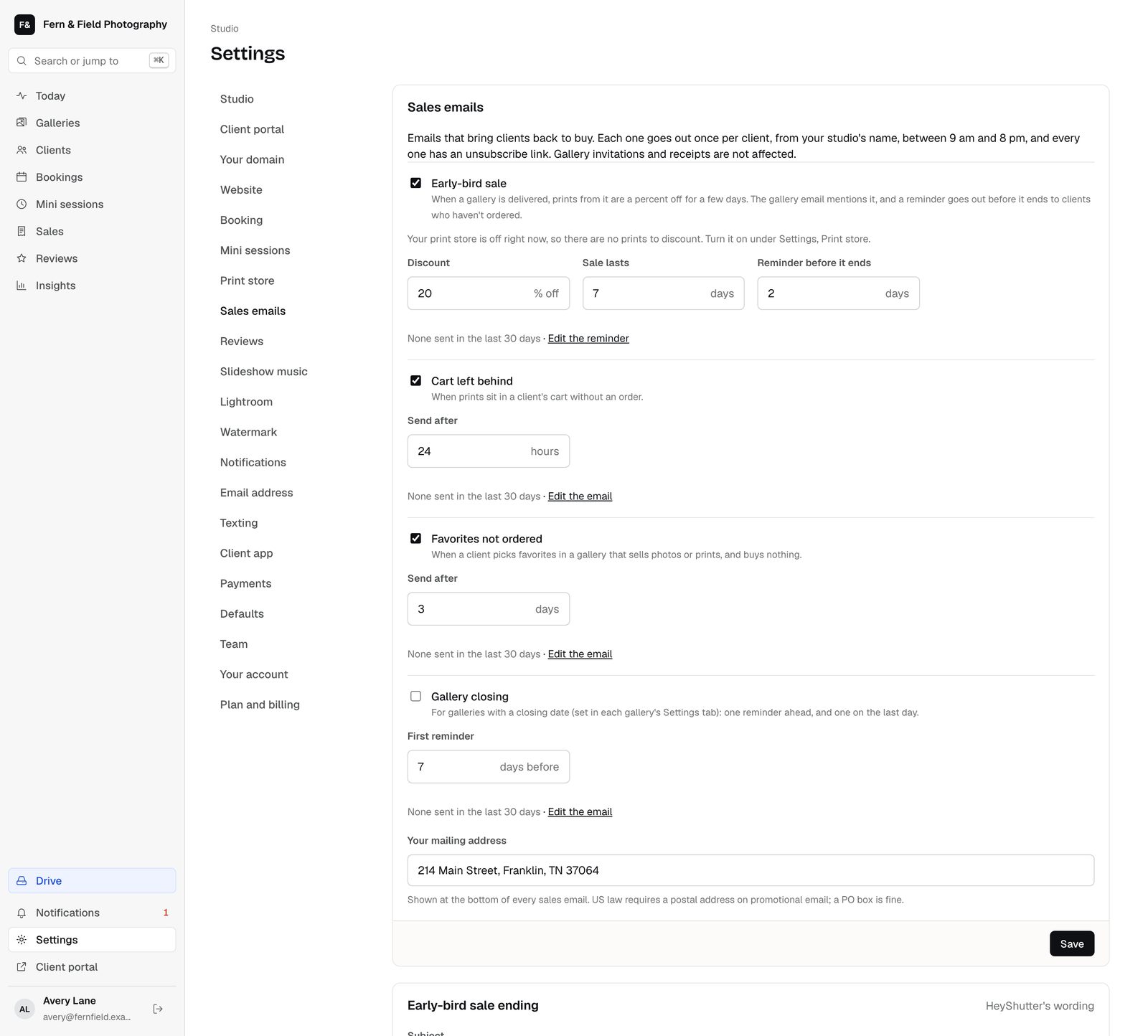
Settings, Sales emails. - STEP 2 OF 5
Pick the emails
Tick the ones you want. Early-bird sale offers a percent off prints for a few days after a gallery is delivered, with a reminder before it ends. Cart left behind goes when prints sit in a cart. Favorites not ordered goes when a client picked favorites but bought nothing. Gallery closing reminds clients before the gallery’s closing date.
- STEP 3 OF 5
Set the timing
Set the discount, how long the sale lasts and when each email goes. Enter your mailing address and click Save.
- STEP 4 OF 5
Edit the wording
Each email has its own editor below. Change the subject and the text, keeping the links it needs. Click Save wording, or Use HeyShutter’s wording to start over.
- STEP 5 OF 5
Preview and test
Click Preview to see the email, or Send me a test to get it in your inbox.
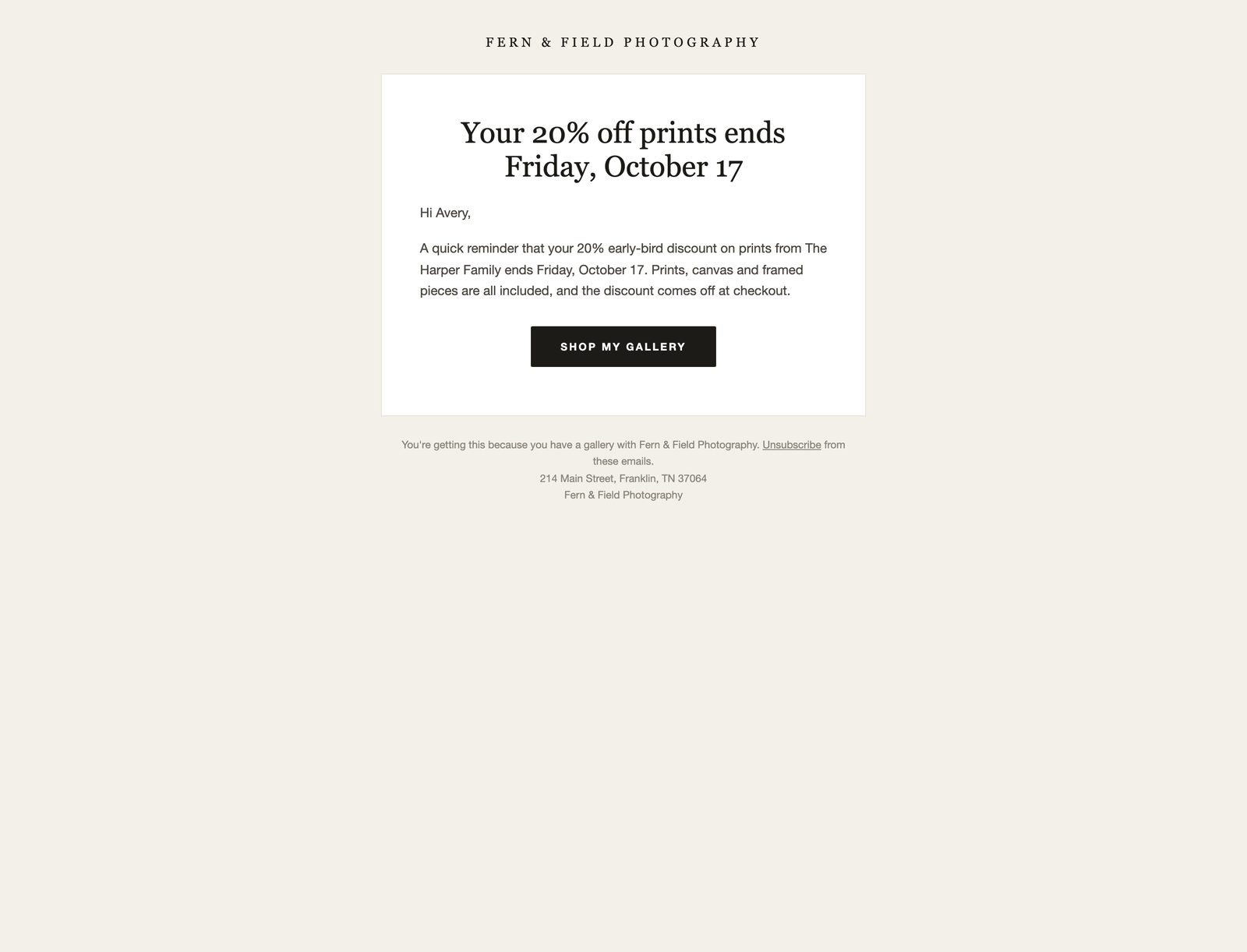
The early-bird reminder.
When they send
Questions
Do sales emails cost extra?
No. They come with every plan.
Can clients unsubscribe?
Yes. Every sales email has an unsubscribe link, and gallery invitations and receipts are not affected.
Stuck? Email [email protected] with a screenshot, or open Support from inside HeyShutter.